




13 Best Figma Alternatives in 2026


Key takeaways:
- Sketch opens .fig files directly and Pixso imports them; Penpot, Framer, UXPin, Uizard and Lovable work through Figma plugins, while Subframe's AI redraws Figma frames you paste in as images (September 2026).
- Penpot is the strongest open-source pick: free for up to 8 team members, self-hostable, and reached through the Penpot Exporter plugin for a one-off move from Figma.
- 11 of the 13 tools have a free plan or a free self-hosted version, so you can test most of them on a real file before paying.
- Two tools older roundups still recommend are gone: Motiff has been discontinued, and invisionapp.com now serves Miro's site.
You might be looking at Figma alternatives because the seat bill keeps growing, because Figma Make draws on the same per-seat AI credits as every other Figma AI feature, or because your files need to live on servers you control. Those are separate problems.
The search also covers five different jobs (a Figma-like canvas, a Figma Make-style AI builder, quick app prototyping, vector editing and open source), and each needs a different kind of tool.
We checked each of these 13 alternatives to the Figma design tool on its vendor's own site and docs: the job it replaces, what it costs and how your Figma work gets in. That last check sets the switching cost, because a tool that can't take in your files means rebuilding them by hand.
We put our own Awesomic Studio at #1, and every price here was re-read on the vendor's own page in September 2026.
Why look for Figma alternatives?
There are five common reasons to leave Figma, and each one points to a different kind of tool.
- The bill grows with every editor, and on paid plans full Figma Make access comes only with a Full seat.
- Every Figma AI feature draws on the same monthly credit allotment in each seat, so heavy Figma Make use competes with everything else.
- Your security team wants design files on servers you control.
- You'd rather work in a native desktop app, or you want designs that end as code.
- Your team wants alternatives to Figma for quick app prototyping, where a typed prompt beats a blank canvas.
Price sits under the first two. A Full seat on Figma's Professional plan costs $16 a month billed annually or $20 month to month, with 3,000 AI credits a month. Multiply that by every designer and product manager who needs edit access, and a cheaper seat, a self-hosted canvas or a prompt-first builder starts to look sensible.
The 13 best Figma alternatives in 2026
What are the best Figma alternatives for your team? Start from the job you'd hand the new tool, then check its Figma route in the reviews below, since that route decides how much you rebuild.
Two names that other roundups still list didn't make ours. Motiff's homepage now says "Motiff has been discontinued," with data export available until October 31, 2026, and invisionapp.com serves Miro's site instead of InVision's. The table sums up the 13 that made the cut.
| Tool | Best for | Key features | Main limitation | Pricing (from) | Rating |
|---|---|---|---|---|---|
| Awesomic Studio | Shipping hosted pages from prompts | Coding agents, built-in hosting, human takeover | Not a vector editor; no free plan | $20/month | ★★★★★ |
| Penpot | Open-source canvas you can self-host | Grid and Flex layout, self-hosting, MCP server | Exporter migration needs layout cleanup | $0 (free) | ★★★★★ |
| Sketch | Native Mac design that opens .fig files | Direct .fig opening, native app, $120 license | Editing is Mac-only | $12/editor/month | ★★★★☆ |
| Framer | Designs that publish as websites | Hosted site, CMS, Figma paste-in | Built for sites more than app UI | $0 (free) | ★★★★☆ |
| Pixso | Figma-style canvas with dev handoff | Figma-like canvas, whiteboard, Figma file import | Free plan capped at 3 design files | $0 (free) | ★★★★☆ |
| UXPin | Prototypes built from coded components | Merge, logic in prototypes, Figma plugin | Own components need Enterprise | $0 (limited free plan) | ★★★★☆ |
| Subframe | Designs that become React code | React output, AI, free viewers | Figma frames come in as images | $0 (free) | ★★★★☆ |
| Lovable | Turning prompts into working apps | Full apps, Figma plugin, Figma MCP | Custom domains start on Pro | $0 (free) | ★★★★★ |
| v0 | Developer-owned code from Figma links | Figma link import, your tokens, multi-page flows | Figma import needs a paid plan | $0 (free) | ★★★★☆ |
| Onlook | Visual edits to React codebases | Open source, code-level editing, Figma rebuild tutorial | No self-serve hosted plan | $0 (self-hosted) | ★★★☆☆ |
| Uizard | Fast AI mockups and app prototypes | Prompt or screenshot input, Figma plugin | Mockup-level fidelity | $0 (free) | ★★★★☆ |
| Visily | Quick AI wireframes and mockups | AI wireframes, screenshot input, two-way Figma plugin | Figma import and export need a paid plan | $0 (free) | ★★★★☆ |
| Inkscape | Free desktop vector editing | Bezier and spiro curves, SVG/PDF/EPS/AI, extensions | Can't open .fig files | $0 (free) | ★★★★☆ |
Stars rate how well each tool does the Figma job in its Best-for column, minus one star for a hard access limit: editing only on a Mac, or self-hosting as the only self-serve option. That rule took a star each from Sketch and Onlook, and price moved no rating. The Figma route isn't scored either, so check it in each review and in the cost table.
1. Awesomic Studio
Best for: Shipping hosted pages from prompts
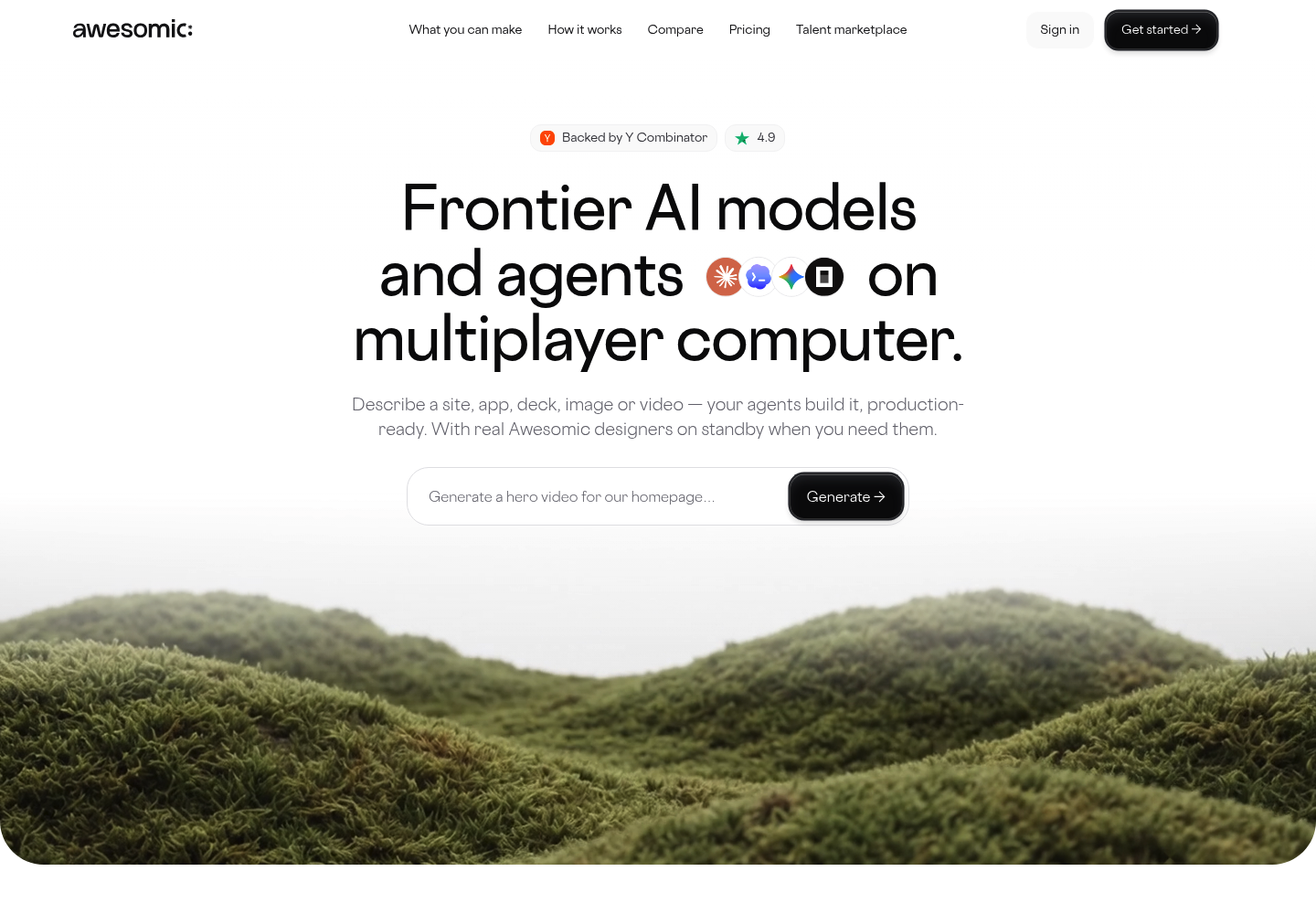
Overview: Awesomic Studio is the Figma Make alternative we built for teams that want a prompt to end as hosted code. You describe a site, app, deck, image or video in plain words, and Studio's agents (Codex, Claude Code and OpenCode) build it inside a shared workspace.
Studio then publishes and hosts the result. Figma is one of its eight connections, so Studio can sit beside your Figma files instead of replacing the whole canvas.
When the agents miss, a vetted Awesomic designer or developer takes over from what's already in the workspace and hands it back. Studio comes from the team behind Awesomic, which 4,000+ companies have worked with.
Key features:
- Coding agents write the site or app as real code.
- Built-in hosting pushes work live and shares it privately or publicly.
- Nano Banana, Seedream and Flux make images; Veo, Kling and Seedance make video.
- Claude, GPT and Gemini are available as text models.
- Export to code or other tools when your own developers pick it up.
- Always-on agents and scheduled automations keep running after you close the tab.
Pricing: Basic costs $20 a month, Pro $200 and Maximum $500, and each plan's fee doubles as that month's usage budget. Studio doesn't publish a rate per model or per build, so you learn how far a budget goes by using it.
Pros: Output that's hosted and live, image and video models in one workspace, a human takeover when agents miss, eight connections including Figma and GitHub, a $20 entry plan
Cons: Not a vector editor, so icons and your design system stay in a canvas tool; no free tier, and no trial either
How to start using it:
- Pick a plan; its fee is that month's budget.
- Describe the page or app with text, files or links.
- Let the agents build it, then ask for changes in plain words.
- Publish it, share it or export the code.
- Call in an Awesomic designer or developer if the result misses.
Why it's a good Figma alternative: It replaces the Figma Make step for teams whose real goal is a live page or app, and it keeps Figma connected for the canvas work it doesn't do. The human takeover covers the briefs a prompt can't carry alone.
Final verdict: Pick Studio when the screen you'd prototype in Figma Make is one you then need built and hosted. Keep Figma, Penpot or Sketch for icons and component libraries.

2. Penpot

Overview: Penpot is the Figma-style canvas you can host yourself. It runs in the browser and lays out screens with CSS Grid and Flex.
Migration runs through the Penpot Exporter plugin for Figma, which carries components and libraries; Penpot's guide warns of layout cleanup and calls the exporter a one-off move, not a sync.
Key features:
- Self-hosting keeps design files on your servers.
- Grid and Flex layouts mirror how developers build.
- An MCP server connects files to AI workflows.
Pricing: Up to 8 team members pay nothing on Professional. Unlimited costs $7 per user a month, capped at $175, and Enterprise caps at $950.
Pros: Open source (MPL-2.0), free for small teams, unlimited viewers
Cons: Layout cleanup after migration, fewer plugins than Figma, no ongoing sync
Why it's a good Figma alternative: Everyday canvas work carries over, and self-hosting answers the data-control reason to leave.
Final verdict: The default pick for teams that want a familiar canvas and their own files.
3. Sketch

Overview: Sketch is a native Mac design app that has opened .fig files directly since January 2023: use the File menu or drag the file onto its Dock icon. The importer isn't in the Mac App Store version, so install Sketch from its own site.
Editing needs macOS Sequoia (15.0.0) or newer, and there's no browser editor for colleagues on Windows, though they can view, comment and inspect in Sketch's web app for free.
Key features:
- Direct .fig opening skips the export step.
- The native Mac app keeps work out of the browser.
- A one-time $120 license suits solo designers.
Pricing: You'll pay $12 per editor a month on Standard, $24 on Professional or $44 on Enterprise, billed yearly. The one-time $120 license skips collaboration and includes 12 months of updates, and a 30-day trial stands in for a free plan.
Pros: Opens .fig files, one-time license, 30-day trial
Cons: Mac-only editing, no free plan, no browser editing
Where it beats Figma: It's a native Mac app that works offline with locally saved files, and a solo designer can pay $120 once instead of renting a seat.
Final verdict: The low-friction move for Mac teams that need their .fig files working on day one.
4. Framer
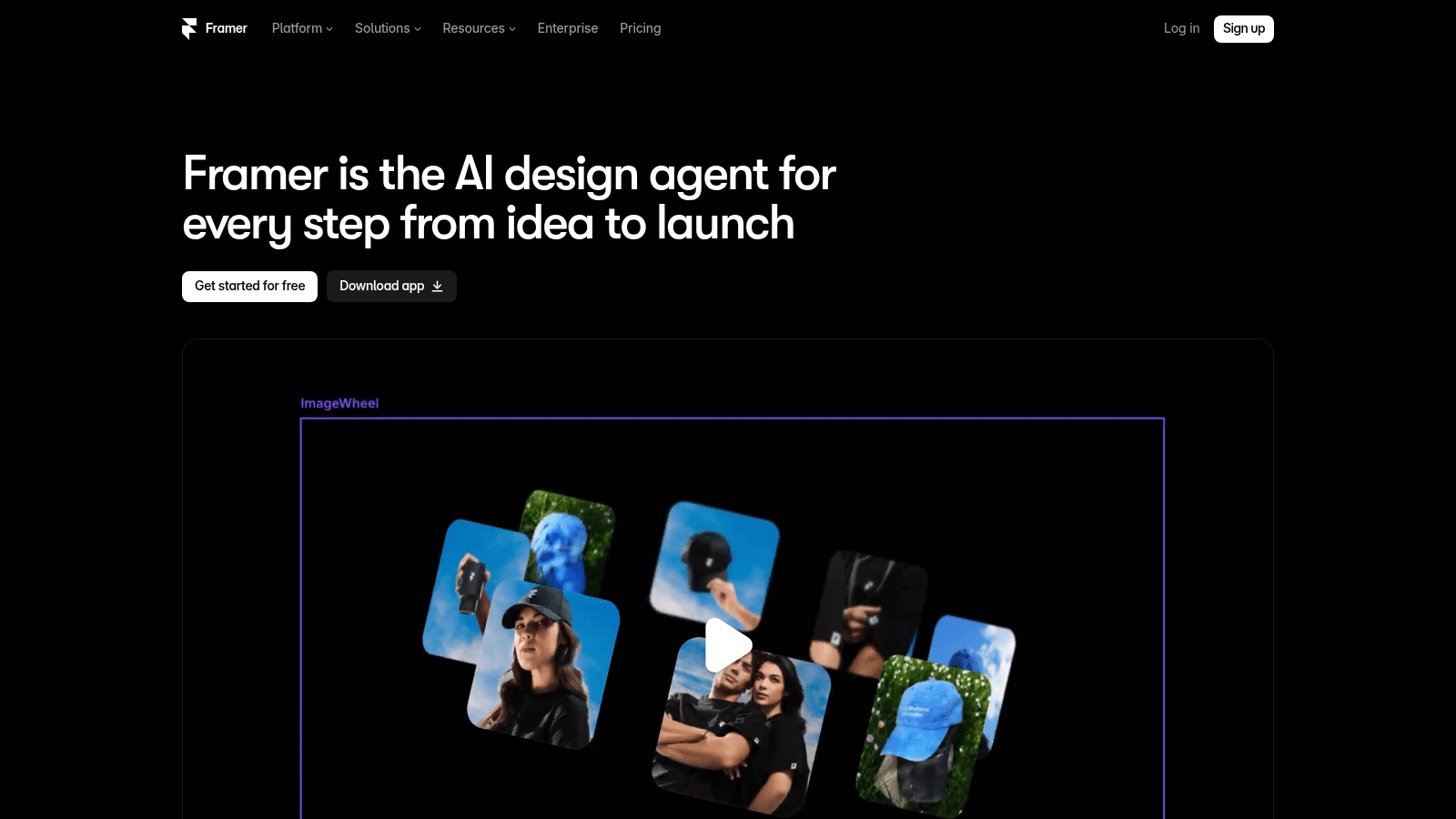
Overview: Framer makes the design itself the live, hosted website, which suits marketing sites more than app UI.
Its "Figma to HTML with Framer" plugin lets you copy layers in Figma and paste them into Framer with auto layout, hierarchy and fills intact.
Key features:
- Canvas publishing puts pages on Framer's hosting.
- A built-in CMS keeps content editable.
- Figma paste-in carries layouts across.
Pricing: After the free plan, Framer bills per site: Basic is $10 a month yearly ($15 monthly) and Pro $30 ($45 monthly). Extra editors add $20 a month yearly or $30 monthly.
Pros: Design and hosting in one tool, a free plan, Figma paste-in
Cons: Site-first rather than app-first, editor fees on top, a separate paid plan for every site
Why switchers pick it: If your Figma files all end up as web pages, Framer skips rebuilding them in code.
Final verdict: The right swap when your Figma work is really website work.
5. Pixso
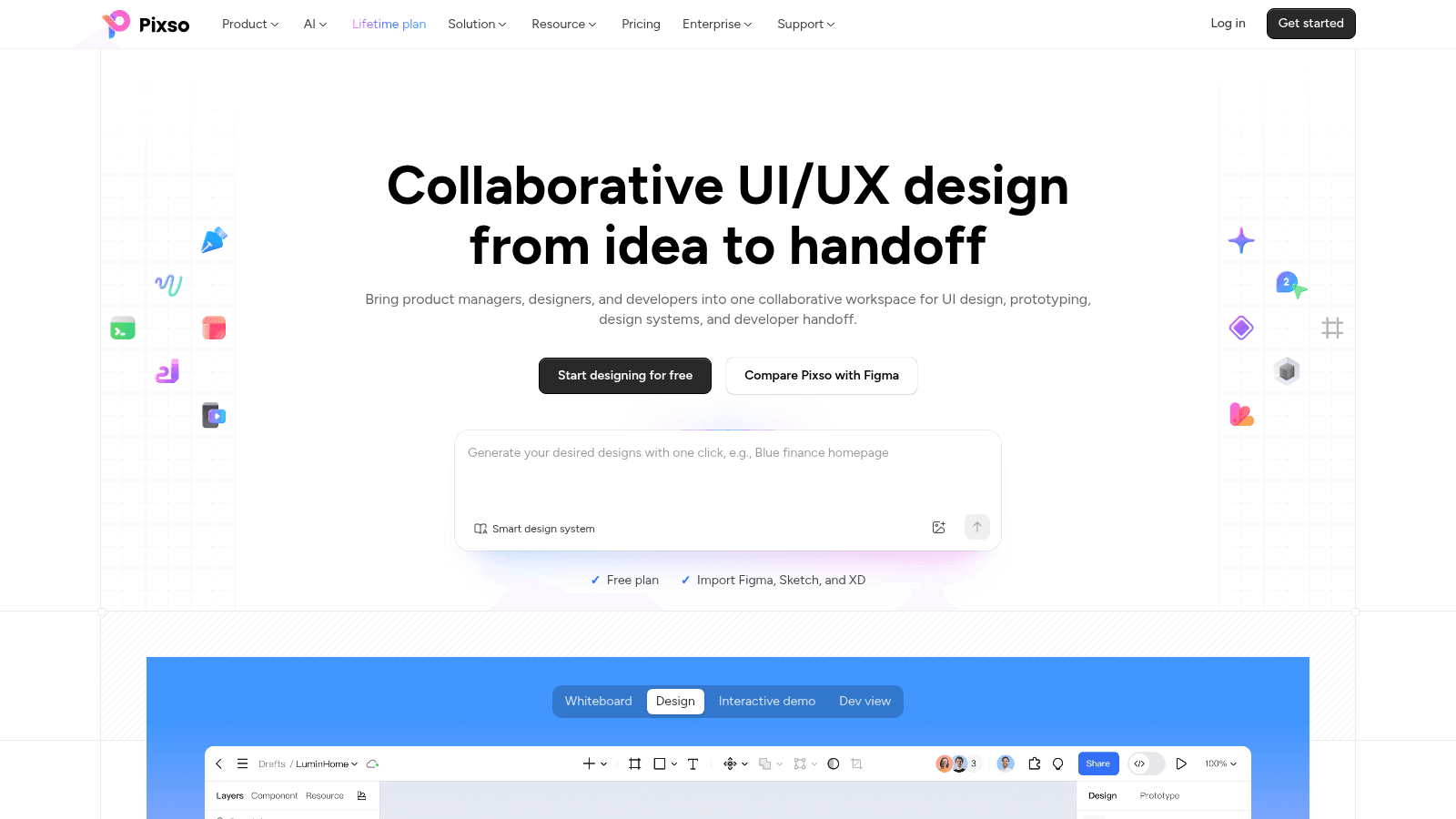
Overview: Pixso is a Figma-like design canvas with a whiteboard and Dev Mode-style handoff in the same workspace.
To move over, you click Import on its toolbar and upload your Figma file, and Sketch, Axure and SVG files come in the same way.
Key features:
- Figma file import brings existing work in.
- Handoff gives developers specs from the same file.
- A built-in whiteboard covers brainstorms.
Pricing: On Team, a Creator seat is $120 a year on annual billing or $12 a month on monthly, a Developer seat $72 or $8, and a Collaborator seat $24 or $4. The free plan stops at 3 design files and 3 whiteboard files.
Pros: Figma-like canvas, Figma file import, a $24-a-year Collaborator seat
Cons: 3-file free cap, on-premise pricing is quote-only
Why it made this list: It takes your .fig files onto a Figma-like canvas for $10 a month per Creator seat on annual billing.
Final verdict: Worth testing on the free plan when retraining the team is the cost you most want to avoid.
6. UXPin

Overview: UXPin's Merge brings real coded components from your repository onto the canvas, so prototypes use the buttons and forms your product ships, with logic as well as links.
Its Figma plugin copies the elements you select, and you paste them into UXPin with Ctrl+V.
Key features:
- Merge puts shipped components on the canvas.
- Logic-driven prototypes test real flows.
- Copy and paste moves Figma elements across.
Pricing: Core runs $29 a month yearly or $49 month to month, and Growth $40 or $69. Core includes UXPin's built-in coded libraries, and its FAQ puts custom libraries of your own components on Enterprise, which is priced on request. A limited free plan remains after the 14-day trial.
Pros: Coded components in design, logic in prototypes, a free plan after the trial
Cons: Your own component library needs Enterprise and a developer to connect it, monthly prices well above yearly, piece-by-piece migration
Its real strength: Designers use the components developers already ship, so nothing gets translated at handoff.
Final verdict: Choose it when your component library already lives in code and an Enterprise quote fits the budget.
7. Subframe
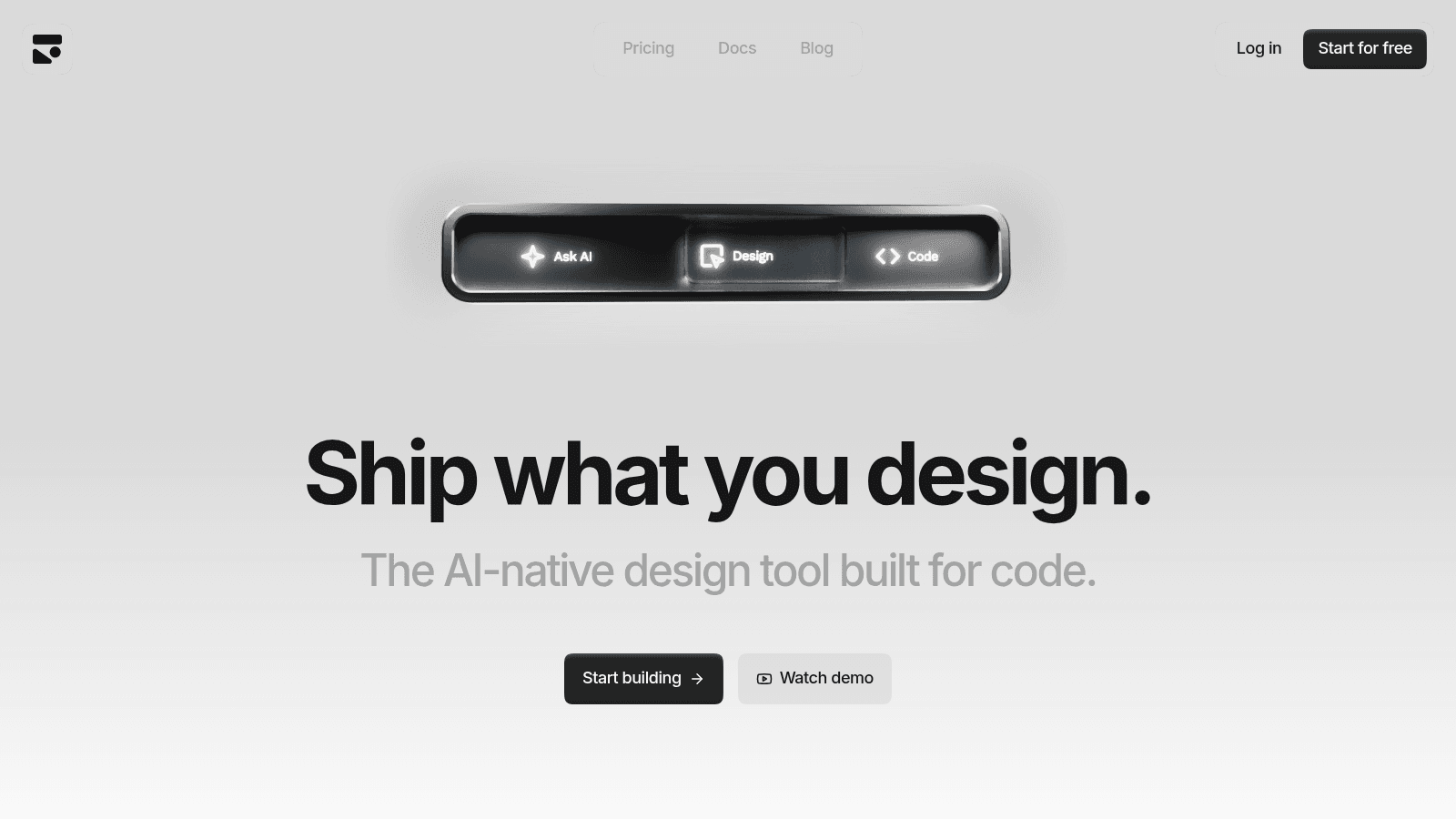
Overview: Subframe is an AI-native design tool whose canvas becomes production React code.
As of September 2026, its docs offer two Figma routes: paste a frame as a PNG for its AI to recreate with your components, or import Figma variables as design tokens. Neither moves real layers, so check every recreated screen.
In an April 2026 thread on Reddit, one poster wrote, "I've already switched to Subframe which outputs clean code, and I only go back to Figma for legacy designs." That's one person's experience.
Key features:
- Designs export as shippable React code.
- Ask AI generates pages, themes and components in the editor.
- A CLI syncs components one way, from Subframe into your codebase.
Pricing: Pro costs $29 per editor a month for unlimited projects, pages, prototypes and AI. Free covers 1 project of up to 10 pages and 2 prototypes.
Pros: React output, free viewers on every plan, AI in the editor
Cons: Figma frames arrive as images for AI to redraw, token import keeps light or dark mode but not both, 24-hour version history on free
What it does differently: Developers pull the code, so nobody rebuilds your screens in React.
Final verdict: Strong for a new product, harder for a team with years of Figma files.
8. Lovable
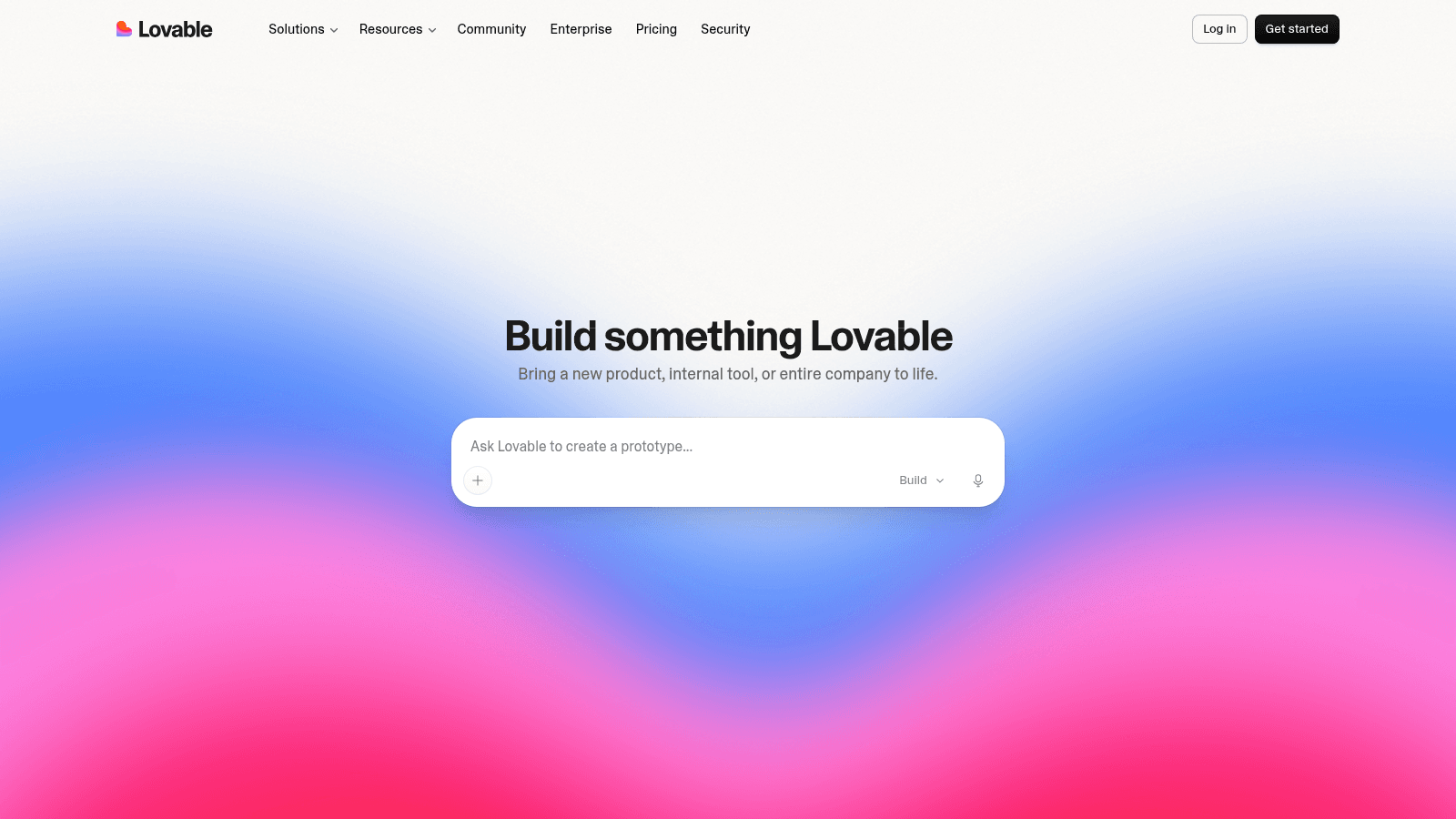
Overview: Lovable builds a full working app from a prompt, which puts it squarely against Figma Make, and its own navigation lists prototyping.
Figma work gets in three ways, more than any other AI builder here: a Figma plugin, the Figma MCP (both desktop apps and a paid Figma seat) or a .fig file upload, though the upload carries design values and frame names, not the screens themselves.
Key features:
- A prompt produces an app you can use.
- Three Figma routes: plugin, MCP or .fig upload.
- Pro adds custom domains for your own URL.
Pricing: Start free, then pay $25 a month for Pro or $50 for Business. Enterprise sits above both.
Pros: Working apps from a prompt, three Figma routes, a free plan
Cons: Custom domains start on Pro, Figma MCP requires two desktop apps and a Dev or Full Figma seat, generated code needs a developer's review
The case for switching: Your Figma screens become the start of a working app instead of a handoff document.
Final verdict: Pick it when the app must start from Figma screens you already have.
9. v0

Overview: v0 is Vercel's prompt-to-app builder, and it can build a whole multi-page Figma file as one flow.
You paste a Figma link, and its docs say "You do not need a plugin or the Figma desktop app," but also that "The Figma integration is available on paid v0 plans."
Key features:
- A pasted Figma link starts the build.
- Your tokens and assets carry into the code.
- Multi-page files become one connected flow.
Pricing: The free tier gives you $5 in credits and 7 messages a day. Plus is $30 per user a month, and Business jumps to $100 per user.
Pros: Link-based Figma import, code your developers own, a free tier for prompt-only builds
Cons: Figma import needs a paid plan, 7 free messages a day, a steep jump to Business
Who should switch to it: Developer-led teams that treat Figma as a spec to turn into code.
Final verdict: A developer's Figma Make alternative, once someone pays for Plus.
10. Onlook

Overview: Onlook calls itself "Cursor for designers": an open-source visual editor that works on a real React and Tailwind codebase, so edits change the code itself.
Its "Figma to Onlook" tutorial has you export frames as SVG or PNG, import them as assets and rebuild them as React components with Onlook's tools, starting from a file with auto layout and named layers.
Key features:
- Visual edits write straight to React code.
- Self-hosting keeps the tool in your stack.
- A Figma tutorial covers rebuilding exported frames in React.
Pricing: Self-hosting from GitHub is free under Apache-2.0. The hosted cloud version has no public price; you contact Onlook or book a demo.
Pros: Open source, edits real code, free to self-host
Cons: React and Tailwind only, no self-serve hosted plan, Figma frames arrive as SVG or PNG to rebuild
Why it earns a spot: It suits teams whose real design source is already the codebase.
Final verdict: Worth a look for React teams, and a skip for anyone on another stack.
11. Uizard
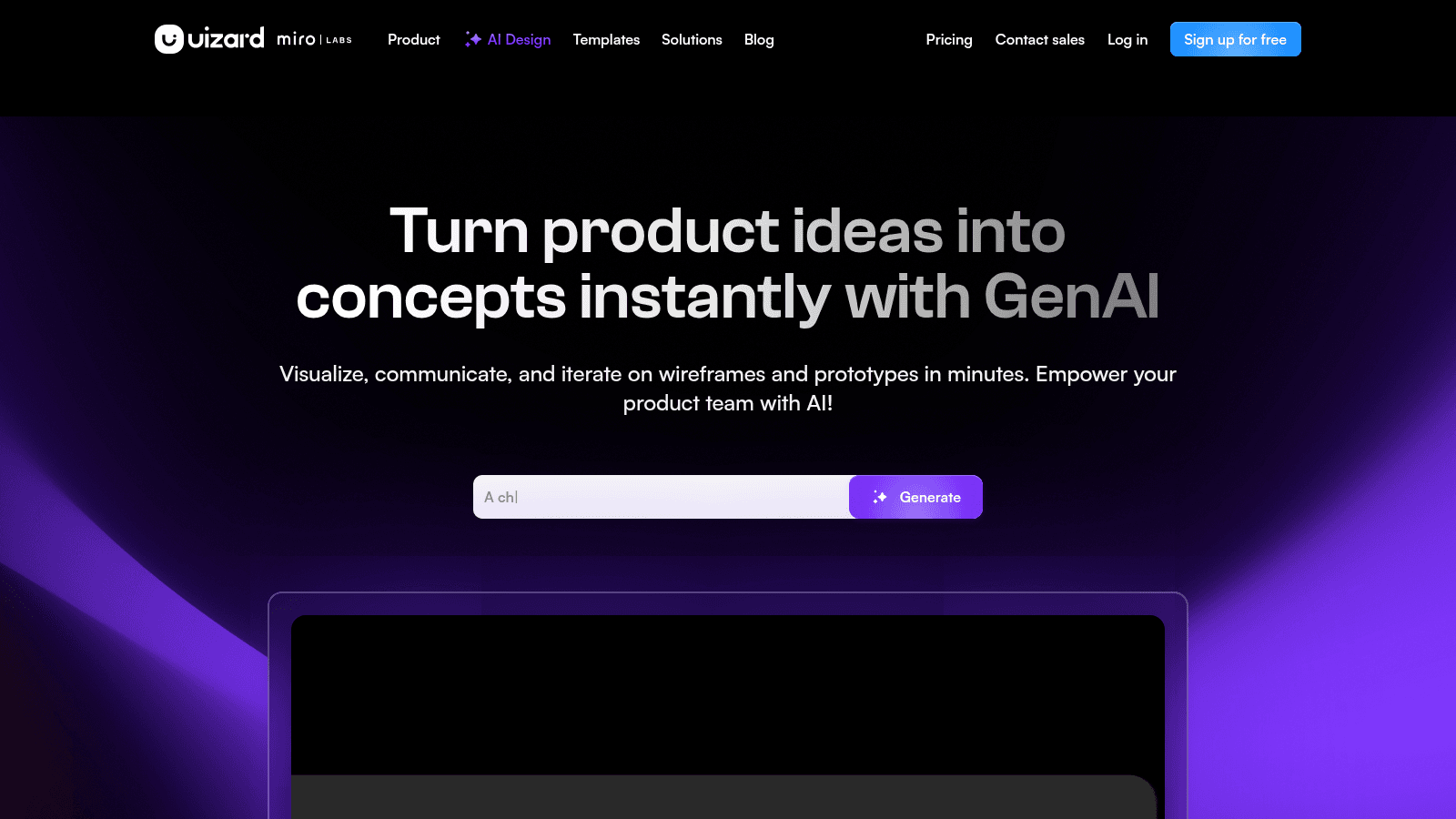
Overview: Uizard, now branded "Uizard by Miro Labs," turns a typed prompt or a screenshot into app mockups and prototypes.
Its "Figma to Uizard" plugin sends elements, not whole files, and Uizard's own blog post lists Figma features the plugin doesn't support.
Key features:
- Prompt-to-mockup generation skips the blank canvas.
- Screenshot input turns an existing app into editable screens.
- The Figma plugin sends elements across.
Pricing: Pro is $12 a month billed yearly or $15 monthly. Business costs $39 a month on yearly billing, and a free plan covers first experiments.
Pros: Prompt and screenshot input, a free plan, a low Pro price
Cons: Mockup-level fidelity, element-by-element Figma transfer, Business priced yearly
Where it saves time: Early ideas become testable prototypes before a designer touches the canvas.
Final verdict: Explore ideas here, then finish the winners in a canvas tool.
12. Visily

Overview: Visily generates wireframes and mockups from a text prompt, a screenshot or a template, and it says it was built for non-designers.
On paid plans its Figma plugin works both ways, bringing layers in by copy and paste or a .vis file, though Visily's help center warns that complex shadows may be simplified.
Key features:
- AI wireframes come from a text prompt.
- Screenshot-to-design reworks an existing screen.
- Interactive prototypes work on every plan, free included.
Pricing: Pro costs $11 per editor a month billed yearly or $14 monthly, a dollar under Uizard's Pro either way. Business is $29 per editor a month, billed annually.
Pros: Low Pro price, a free plan, a two-way Figma plugin
Cons: Figma import and export need a paid plan, 300 AI credits a month on free, 2 editable boards on free
When it's the right call: A product manager needs wireframes today, and a designer will finish them in Figma.
Final verdict: A cheap front end to Figma rather than a replacement for it.
13. Inkscape
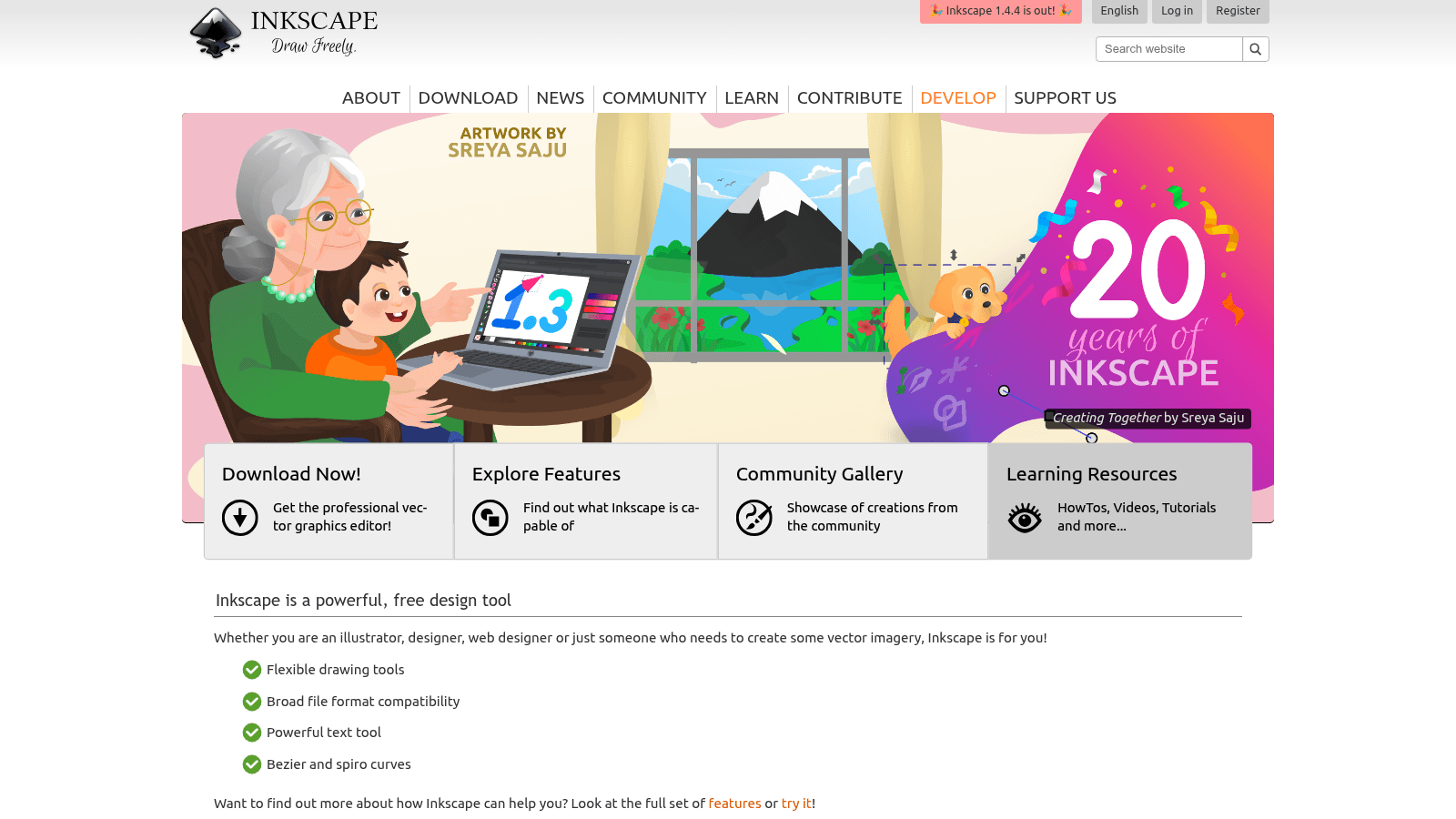
Overview: Inkscape is a free, open-source vector editor for Windows, Mac and Linux. If you searched for Figma vector manipulation plugins, alternatives like Inkscape give you Bezier and spiro curves as core tools.
Inkscape can't open .fig files, so export SVG from Figma and open that.
Key features:
- Bezier and spiro curves give fine path control.
- SVG, PDF, EPS and AI support covers print and web.
- Extensions add tools the core app lacks.
Pricing: Inkscape costs nothing and runs on donations. Version 1.4.4, the latest, shipped on May 6, 2026.
Pros: Free, cross-platform, broad format support
Cons: No components or interactions for UI work, desktop-only without real-time multiplayer, no .fig import
Why it's here: When icons and logos need more path control than a UI canvas offers, Inkscape does the job for free.
Final verdict: Keep it beside whichever canvas you choose for vector work.
Open source alternatives to Figma
Three tools on this list are open source. Penpot (MPL-2.0) and Onlook (Apache-2.0) can run on your own servers, and Inkscape runs on your desktop. Choosing among open source alternatives to Figma comes down to where your work lives: Penpot for a shared UI canvas, Onlook for teams editing React code and Inkscape for vectors.
The open-source model is worth far more than it costs to build. Harvard Business School researchers put the supply-side value of the most widely used open-source software at $4.15 billion, against $8.8 trillion that firms would spend to rebuild the open-source software they use (Hoffmann, Nagle and Zhou, HBS Working Paper 24-038, 2024).
For a design team, that gap is the case for shared tools: the software gets built once and reused everywhere, and you keep the right to run it yourself.
At least one Figma user found the move easy. In a 2023 thread on Reddit, they wrote: "There is only one answer: Penpot. It is excellent, very easy to switch over from Figma, and completely open source." That's one person's experience, so run the exporter on your own files before you commit.
Figma Make alternatives: what AI builders can and can't replace
Figma Make alternatives replace the step between a typed idea and a first working screen. The best alternatives to Figma Make split by where the output ends up: Lovable and v0 hand you app code, Subframe keeps a canvas and exports React, Onlook edits the React you already have, and Uizard and Visily center on mockups and clickable prototypes.
Model makers are building design tools too, such as Anthropic's Claude Design, so expect this group to keep growing. Keep a canvas tool for icons, vector work and your component library, because these builders are made to produce screens and apps.
Treat generated code with care as well. Pearce and colleagues found that about 40% of the 1,689 programs GitHub Copilot wrote across 89 scenarios built around high-risk security weaknesses were vulnerable, in a study presented at the 2022 IEEE Symposium on Security and Privacy.
That study tested Copilot rather than any tool on this list, yet the lesson carries over: before an AI-built app handles logins or customer data, have a developer review the code.
How much do Figma alternatives cost?
Eleven of the 13 cost nothing to start, through a free plan or free self-hosting, and Sketch offers a 30-day trial instead. The table lists each tool's free option, its lowest published paid price and the route your Figma work takes in, all read on the vendor's own pages in September 2026.
| Tool | Free option | Lowest paid price | Figma route |
|---|---|---|---|
| Awesomic Studio | None | $20/month (also the month's usage budget) | One of its eight listed connections |
| Penpot | Up to 8 team members | $7/user/month, capped at $175 | Exporter plugin, then layout cleanup |
| Sketch | 30-day trial only | $12/editor/month yearly; $120 one-time Mac license | Opens .fig files |
| Framer | Free plan | $10/month yearly ($15 monthly) | Plugin, copy and paste |
| Pixso | 3 design files | $24/year Collaborator seat; Creator $120/year or $12/month | Imports .fig files |
| UXPin | Limited plan after a 14-day trial | $29/month yearly ($49 monthly) | Plugin, copy and paste |
| Subframe | 1 project | $29/editor/month | Frame as PNG, AI recreates it |
| Lovable | Free plan | $25/month | Plugin or MCP (a .fig upload carries design values only) |
| v0 | $5 credits, 7 messages a day | $30/user/month | Figma link, paid plans only |
| Onlook | Self-hosting | Hosted version: no public price | Export SVG or PNG, rebuild in React |
| Uizard | Free plan | $12/month yearly ($15 monthly) | Plugin sends elements |
| Visily | Free plan | $11/editor/month yearly ($14 monthly) | Plugin, paid plans only |
| Inkscape | Fully free | Donation-funded | Export SVG from Figma |
Budget for the rebuild as well as the subscription, since components, libraries and prototypes all need recreating or checking in the new tool. If nobody on your team has the hours, you can hire a UI designer through us to run the migration without adding headcount.
How hard is it to switch from Figma?
The route in the cost table decides most of the effort. Opening or importing a .fig file (Sketch, Pixso) is the lightest lift, and Figma plugins (Penpot, Framer, UXPin, Uizard, Visily, Lovable) need more checking. The image routes are the heaviest: Subframe's AI redraws each screen for you to review, and Onlook has you rebuild exported frames yourself.
Whichever route you have, move in this order:
- Download a copy of every Figma file you plan to move, so you keep a fallback.
- Pick one real screen with components, auto layout and text styles, and move it first.
- Compare it with the Figma original for spacing, fonts and layout; Penpot's guide, for instance, notes that Figma's auto layout becomes Flex and Grid.
- Rebuild or re-link your component library before you move more screens.
- Show developers where specs and assets now live, and run one ticket through the new handoff.
- Keep your Figma plan for one more billing cycle in case an old file turns out to be missing.
Screens moved into a prompt-built app need a finishing plan too, because logins, data and edge cases still take a developer, and Lovable agencies now sell exactly that finishing work.
Pros and cons of switching from Figma
Switching can cut costs and open new ways of working, and it also has a price in time. On the plus side, seats can get cheaper: Penpot's Unlimited plan is $7 per user and Pixso's Creator seat works out to $10 a month on annual billing, though UXPin, Subframe and v0 all charge more per seat than Figma's $16.
Penpot and Onlook let you self-host, Framer ends in a live site, and Subframe, Lovable and v0 end in code your developers can use.
On the minus side, every move costs rebuild time, Penpot's plugin ecosystem is smaller than Figma's, and mixed Mac and Windows teams can't all edit in Sketch.
AI builders also raise the question of whether AI will replace graphic designers, and for product screens our answer is not yet: someone still has to judge brand fit, hierarchy and the empty and error states a prompt skips.
How to choose the right Figma alternative
Start with who opens the tool every day, since the app designer vs UI designer split changes the answer: one maps whole flows and states, the other perfects components and screens. If you want alternatives to Figma for UI design, the canvas rows below fit; if you're after alternatives to Figma for quick app prototyping, look at the prompt-first rows.
| Your job | Start with | Why |
|---|---|---|
| UI design on a Figma-like canvas | Penpot, Pixso or Sketch (Mac) | Familiar canvas; Sketch and Pixso take .fig files |
| Figma Make-style builds that go live | Awesomic Studio, Lovable or v0 | Prompt to hosted code or app code |
| Quick app prototyping | Uizard or Visily | Prompt or screenshot to mockups |
| Designing with real coded components | UXPin or Onlook | Real code on the canvas |
| Marketing sites | Framer | The design is the live site |
| Design that exports React | Subframe | Canvas to React code |
| Vector editing | Inkscape | Bezier and spiro curves, free |
| Open source or self-hosted | Penpot, Onlook or Inkscape | You keep the files and can run the code |
You may end up keeping two tools, a canvas for components and a prompt-first builder for fast builds, and that's a sensible setup. Inkscape can sit beside either one when an icon or logo needs precise paths.
Which Figma alternative to test first
Test one tool on one real screen this week before you move a whole library. On a canvas, run Penpot's exporter on a single file; on Macs, open a .fig in Sketch's 30-day trial; and for prompt-built apps, give Lovable one existing Figma screen, or v0 if you pay for Plus. The Figma alternatives worth keeping are the ones that pass that test.
If you want a page or app that goes live without a separate build, Get started with Awesomic Studio's $20 Basic plan and give the agents one real brief first.
FAQ
What are the best Figma alternatives?
It depends on the job. Penpot is the strongest open-source canvas here, Sketch suits all-Mac teams and opens .fig files directly, Framer fits marketing sites, Lovable and v0 turn prompts or Figma files into apps, and Inkscape covers vector work for free.
Which Figma alternatives can open .fig files?
Sketch opens .fig files directly, and Pixso lists .fig among the formats it imports. Lovable's .fig upload carries design-system values and a summary, not the screens, so its Figma plugin does the moving. Penpot, Framer, UXPin and Uizard also use Figma plugins. On paid plans only, Visily's plugin brings Figma layers in and v0 takes a Figma link. Inkscape needs an SVG exported from Figma instead.
Which alternatives to Figma for UI design feel most familiar?
Penpot, Pixso and Sketch feel closest to Figma for everyday UI design, and UXPin fits when your components already exist in code. Judge each one on a busy screen, like the dashboards and settings pages in these web app interface examples, because a simple landing page flatters every tool.
What are the best alternatives to Figma Make?
Awesomic Studio, our #1, fits when you want the prompt to end as a hosted page or app, with a human designer on call if the agents miss. Lovable builds full apps and takes Figma designs in three ways, v0 suits developer-led teams on a paid plan, and Subframe keeps a canvas that exports React.
Are there free open source alternatives to Figma?
Yes. Penpot is open source, costs nothing for teams of up to 8 and can be self-hosted. Onlook is free to self-host for React and Tailwind projects, and Inkscape handles vector work for free on your desktop.
One subscription and your hiring problems solved


FAQ


Awesomic is a revolutionary app that matches companies with vetted professionals across 30+ skill sets, from design and development to marketing and product. Based in San Francisco with a global core team, we offer a faster and more flexible alternative to traditional hiring through a subscription-based model. Awesomic delivers high-quality talent on demand, without the delays of recruiting.
We function as a subscription-based service that matches you to top-tier, vetted talent. Submit a project in just a few clicks and start receiving deliverables in as little as 24 hours. Scale your Awesomic plan up or down as your business needs change.
Every Awesomic subscription comes with unlimited revisions. You receive daily progress updates via the app, and you can provide feedback or request iterations as needed. If your project requires a different approach, you can request a talent rematch at any time, at no extra cost. You can also add teammates to collaborate and streamline feedback
A talent marketplace is a platform that utilizes data and intelligent matching algorithms to connect professionals with projects based on their skills, experience, and availability. While often used internally by large companies, Awesomic applies this model at scale, matching vetted global talent to your most critical business needs.
Hiring is time-consuming, expensive, and risky. Awesomic eliminates that problem. We rigorously vet all talent for technical ability, communication, and soft skills, ensuring only senior-level professionals work on your projects. You skip the job posts, interviews, and delays, and get straight to results.
No, Awesomic goes beyond design. While many clients utilize us for branding, UI/UX design, or motion graphics, we also provide vetted talent in no-code web development, product design, marketing, and more. Think of us as an extension of your team. A flexible, high-performing creative partner from planning to execution, whether you're building awesome products or scaling your team.
You can talk directly with your matched talent via the Awesomic app, connect via Slack, email, or schedule video calls. No matter the plan, you’ll receive daily updates in the app for every active task. You can also tag us in for any issues through our in-app customer chat.


