




Best UI Design Tools in 2026: Our Top Picks

Key takeaways:
- Figma is still the team default among UI design tools, but branching starts on the Organization plan at $55 per Full seat (billed annually). Professional at $16 has version history only.
- Seven of the ten tools here cost nothing to start (Google Stitch is free while in beta). Awesomic Studio, Illustrator and Sketch have no free plan.
- Affinity is now free for individuals and Lunacy gives Windows and Linux designers a free native editor, so vector work no longer needs a subscription.
- AI generators such as Google Stitch and Relume are built for fast first drafts, so refine their output in a canvas tool before anything ships.
UI design tools are where an interface gets its look: screen layouts, the components behind them, the icons inside them, and the versions engineers build from. This list ranks ten for product designers, founders who design their own screens, and teams choosing one shared tool.
We put our own Awesomic Studio at the top of this list, and its entry says plainly what it can't do; every price and feature for the other nine comes from their own pages, checked in September 2026.
The best tools for UI design are rarely the best for research, so this list stays visual. Research and usability testing need UX design tools that recruit participants and record sessions, and interactive prototyping has a separate list too.
What are UI design tools?
A UI design tool is software for drawing what people see and touch in an interface: screens, buttons, forms, icons, type and color. The output is a set of layouts and reusable components that engineers build from, or, with a few tools here, a live page.
The category covers five jobs, and most teams need more than one tool for them:
- Laying out screens on a canvas several people can edit
- Building components and a shared library, so one button change updates every screen
- Drawing vector assets such as icons, logos and illustrations
- Keeping versions, so everyone knows which design engineers built from
- Generating first drafts from a text prompt
Much of the daily work lands on the second job. A design system is that library plus the rules for using it, and your tool decides how hard it is to keep screen forty consistent with screen one.
The 10 best UI design tools in 2026
The table runs in list order, with the lowest published entry price from each vendor's own site in September 2026.
| Tool | Best for | Key features | Main limitation | Pricing (from) | Rating |
|---|---|---|---|---|---|
| Awesomic Studio | Exploring UI directions with AI | Three image models, brand workspace, Figma and Framer connections | Not a vector editor, no version control listed | $20/month | ★★★★★ |
| Figma | Team UI design and handoff | Multiplayer canvas, Dev Mode, Figma Draw | Branching only from $55 Organization seats | $0 (free) | ★★★★★ |
| Adobe Illustrator | Icons and illustration | Vector tools, Generative Recolor, 20,000+ fonts | No free plan, desktop-first | $22.99/month | ★★★★☆ |
| Affinity | Vector work with no subscription | Vector, pixel and layout in one app | Desktop only, teams need Canva Enterprise | $0 (individuals) | ★★★★☆ |
| Sketch | Mac-based UI designers | Native app, real-time collaboration, version history | Mac-only editing, no branching | $12/editor/month | ★★★★☆ |
| Penpot | Open-source, self-hosted teams | SVG engine, self-hosting, plugins | Smaller plugin ecosystem than Figma | $0 (free) | ★★★★★ |
| Framer | Designing and publishing websites | Canvas to live site, CMS, branching on Pro | Built for sites more than app UI | $0 (free) | ★★★★☆ |
| Google Stitch | Free AI concept screens | Prompt to UI, model selector, Figma and code export | Beta, no commitment on limits or price | $0 (free in beta) | ★★★☆☆ |
| Relume | AI sitemaps and Webflow wireframes | Sitemap AI, component library, Figma kit | Webflow-centric, metered AI | $0 (free) | ★★★☆☆ |
| Lunacy | Free native editing off the Mac | Windows, Mac and Linux apps, icon library, .sketch converter | Attribution and low-res assets on free | $0 (free) | ★★★★☆ |
Stars rate fit for this list's job, interface design a team can build from, weighted by how many teams can use the tool, which is why Mac-only Sketch sits a star below Penpot.
1. Awesomic Studio
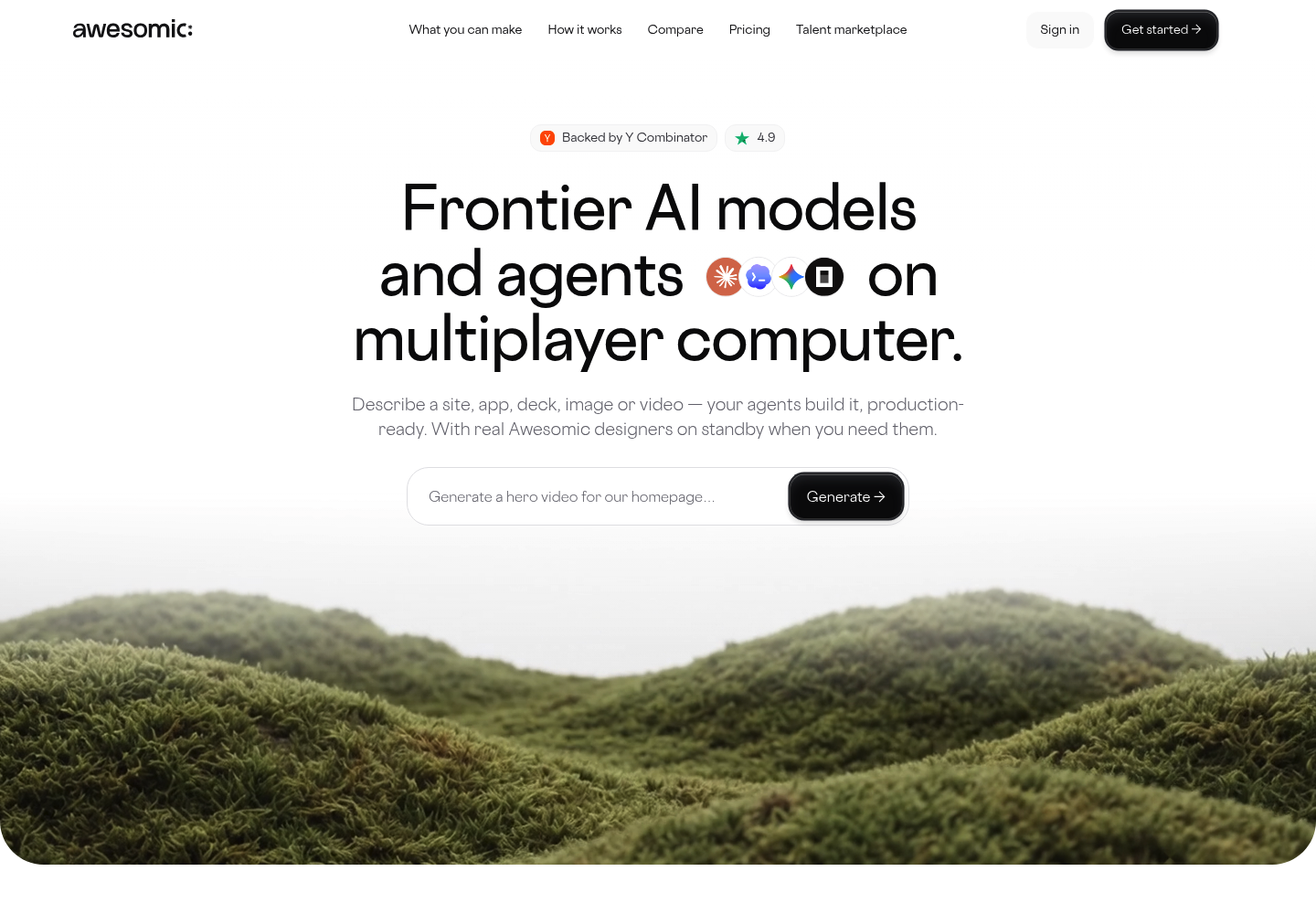
Best for: Exploring visual directions before committing
Overview: Awesomic Studio is our AI workspace, and in UI work it's most useful at the earliest stage, when you need a direction worth refining rather than a finished file. You hand it a brief, a reference screenshot or your brand files, and agents build the screen in a shared workspace.
What earns it a place on a UI list is choice. Studio runs three image models (Nano Banana, Seedream and Flux), so one brief can come back as several distinct visual takes, and your brand assets live in the workspace instead of being re-uploaded for every screen.
Studio also connects to Figma, Framer and Webflow, three of the eight tools on its integrations list.
Key features:
- Three image models, so you can try one brief on each and keep the look that fits
- A persistent workspace for files and brand assets, so new screens start with your logo on hand
- Briefs as text, files, links or a rough idea, so a reference screenshot can start things off
- Web UX/UI and mobile app design on its make-list, covering product screens and marketing pages
- Exports to code or to the other tools you use, which saves redrawing a screen someone already approved
- A vetted Awesomic designer who can take over, so a screen the agents miss still gets finished
Pricing: Studio comes in three monthly tiers, Basic at $20, Pro at $200 and Maximum at $500, and each fee is also that month's usage budget. Any plan can add a dedicated DigitalOcean server for private, always-on hosting of what you build, though the pricing page shows no price for that add-on.
Pros: several visual takes per brief, brand assets in one place, Figma and Framer connections, code export, a human designer as backup
Cons: no free tier or trial period, and Studio isn't a vector editor or a version-control tool, so keep icons and branches in Figma or Illustrator
How to start using it:
- Choose a plan on the Studio pricing page; Basic at $20 a month is the smallest.
- Add your logo, brand files and existing screens to the workspace.
- Describe the screen: who uses it, what it must contain, and a look you like.
- Run the brief through more than one image model and keep the direction that fits.
- Export the chosen screen to code or another tool, then refine it in your editor.
Why it's a good UI design tool: Early UI work is mostly choosing between directions, and Studio shortens that step by putting three image models behind one brief. Once a direction wins, you export it instead of rebuilding it.
Final verdict: Pick Studio when your bottleneck is the first direction, not the fortieth screen. Pair it with Figma or Penpot for vector detail and version history, which Studio doesn't claim to handle.

2. Figma
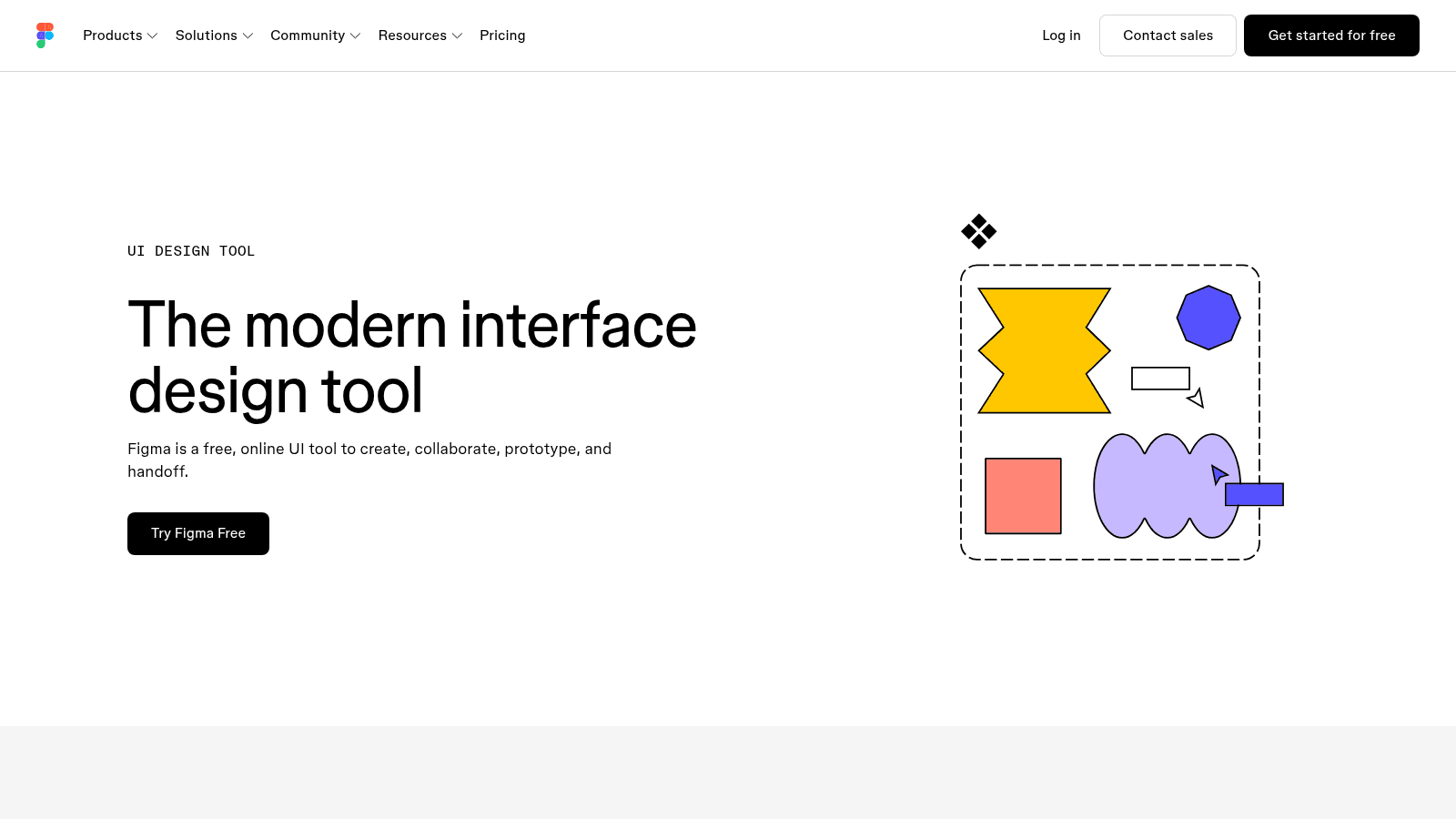
Overview: A shared canvas where a whole team edits one file in real time, with Dev Mode for handoff, Figma Draw for vectors and AI credits across its products.
Key features:
- Multiplayer editing, so reviews happen inside the file
- Dev Mode, so engineers inspect specs without another tool
- Figma Draw, so icons sit beside the screens that use them
Pricing: Starter costs nothing, and on Professional a Full seat is $16 a month (Dev $12, Collab $3). Organization ($55) and Enterprise ($90) Full seats bill annually, with free viewers on paid plans.
Pros: handoff built in, free viewers, a free plan with unlimited drafts
Cons: branching starts at $55 a seat, AI credit ceilings even on paid plans, a steep jump from $16
Why it's a good UI design tool: Components, handoff and AI share one file every role can open, which cuts most syncing between design and engineering.
Final verdict: The team default, if you budget for Organization seats when you need branches.
3. Adobe Illustrator

Overview: Adobe's desktop vector editor, which Adobe sells as the industry standard. In a UI workflow it's where detailed icons and illustrations get drawn before they're placed in an interface canvas.
Key features:
- Precision vector tools, so icons stay sharp at any screen density
- Generative Recolor, so one icon set can be tried in several palettes
- 20,000+ fonts and Adobe Express Premium bundled with the plan
Pricing: Illustrator alone costs $22.99 a month, paid monthly on a one-year plan, with 100GB of storage and 25 generative credits a month. There's no free plan, only a 7-day trial.
Pros: deep vector control, generative recoloring, fonts included
Cons: no free plan, desktop-first, not made for several people editing one interface live
Where it fits: Drawing the icon set or illustration that your UI tool then places, rather than laying out the screens.
Final verdict: Worth paying for asset work, and the wrong home for a design system.
4. Affinity
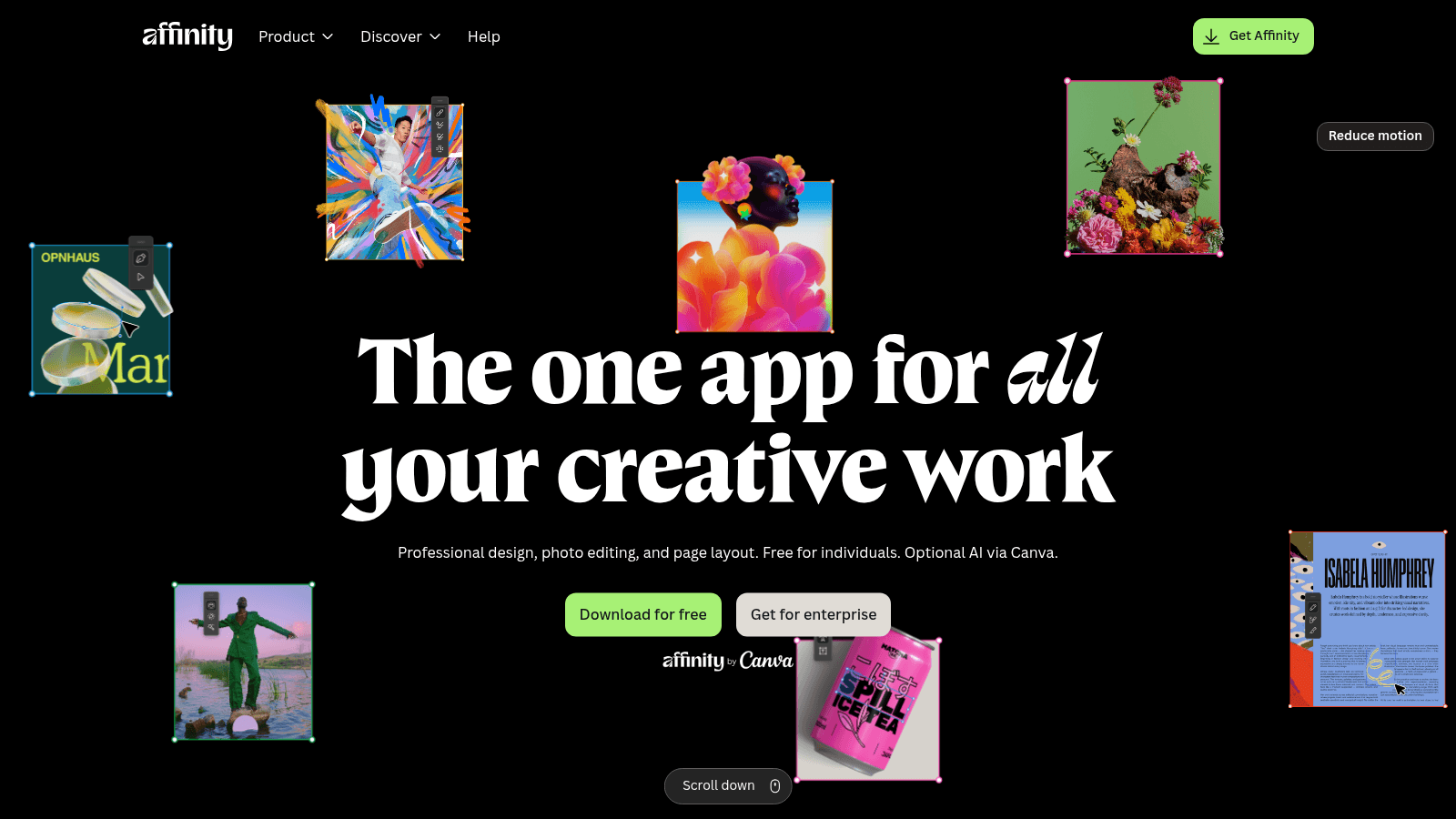
Overview: Affinity, now made by Canva, is a single app that combines vector, pixel and layout work, and it's free for individuals. Canva premium subscribers can switch on its optional AI tools.
Key features:
- Vector, pixel and layout tools in one app, so icons and image edits share one program
- Free for individuals, so a solo designer gets a full editor with no subscription
- Generative Fill and Remove Background through Canva AI Studio for Canva premium subscribers
Pricing: Individuals pay nothing, though the download needs a free Canva account. Teams and organizations deploy it through Canva Enterprise, priced by contacting sales.
Pros: no subscription, vector and pixel work together, AI kept optional
Cons: desktop only on Windows and Mac, a Canva account to download, team features tied to Canva Enterprise
What it is genuinely good at: Giving freelancers and one-person teams professional vector tools at no cost.
Final verdict: A complete vector and pixel editor for nothing, if you work alone.
5. Sketch

Overview: A native Mac app for interface design, sold per editor with real-time collaboration or as a one-time Mac-only license. Editing requires macOS Sequoia (15.0.0) or newer.
Key features:
- Real-time collaboration and unlimited documents on every subscription, so the team works in shared files
- Version history on all plans, so earlier states stay recoverable
- Free unlimited viewers, so reviewers need no seat
Pricing: Billed yearly, Standard is $12 per editor a month, Professional $24 with SSO and Enterprise $44. A one-time $120 Mac license includes a year of updates but no collaboration, and a 30-day trial with no card replaces a free plan.
Pros: native Mac performance, a one-time license option, free viewers
Cons: Mac-only editing, linear history without branching, no free plan
Why teams shortlist it: It's the one tool here you can buy outright, which suits a solo designer on a Mac.
Final verdict: A good fit for an all-Mac team, and a hard sell if anyone designs on Windows.
6. Penpot

Overview: An open-source design tool you can use in the cloud or host yourself, with an SVG-based vector engine and a team bill that stops at a fixed ceiling.
Key features:
- An SVG-based vector engine, built on the open format browsers render
- Self-hosting or private cloud, so files stay on infrastructure you control
- Unlimited teams on the free tier, so a small studio starts with no budget line
Pricing: Professional costs nothing for teams of up to eight, with 10GB of storage and a 7-day version history. Unlimited is $7 a user each month, the whole team's bill stops at $175 a month, and Enterprise starts at $950 a month.
Pros: open source, a capped bill, a generous free tier
Cons: fewer plugins than Figma, 7-day history on free, less mature advanced prototyping
Its real strength: Control, since a team that can't keep files on someone else's cloud still gets a modern interface tool.
Final verdict: Choose it when file ownership and a predictable bill outrank plugin count.
7. Framer
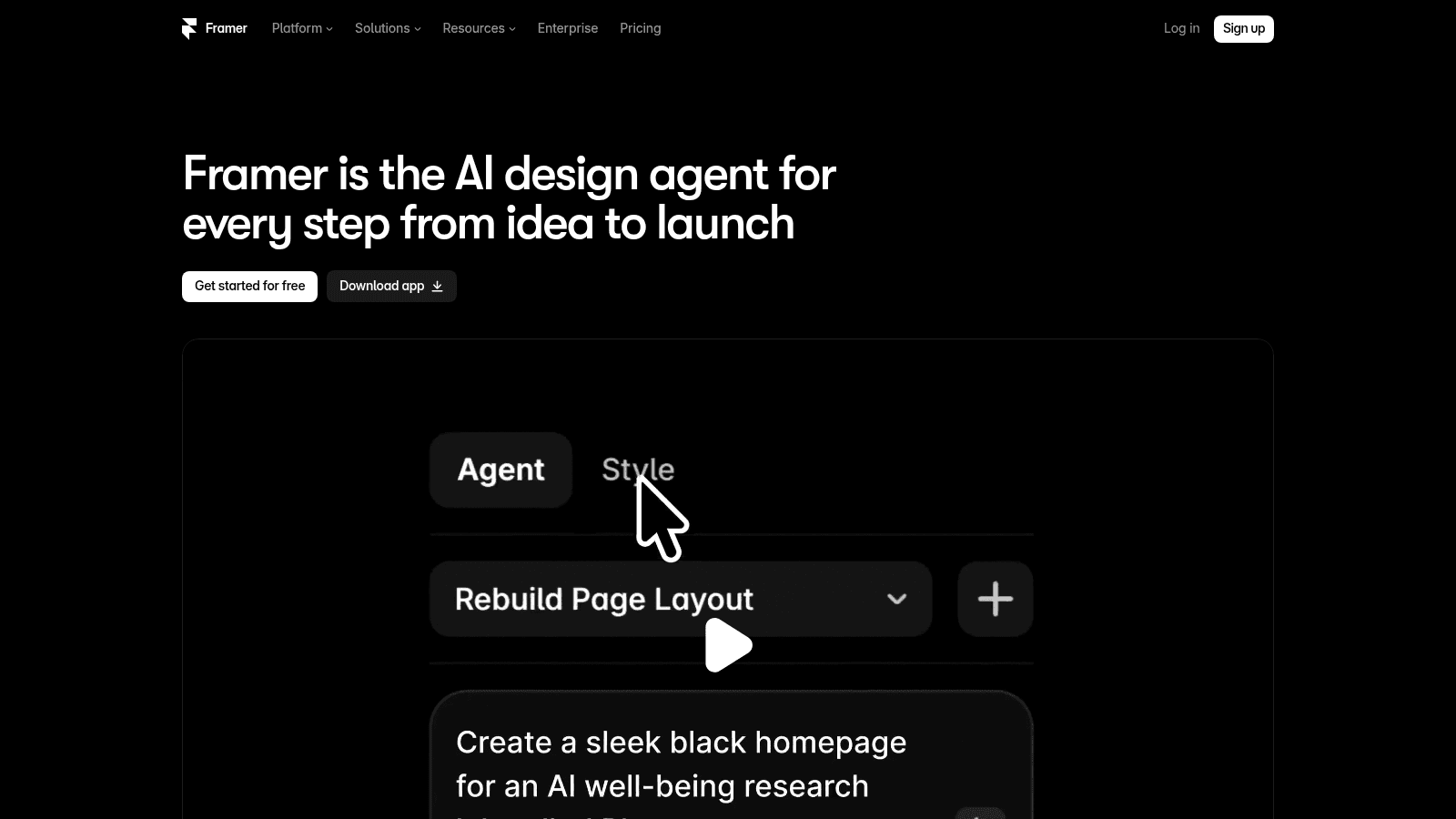
Overview: Framer now describes itself as an AI design agent. In practice it's a canvas that publishes a live website, CMS and hosting included.
Key features:
- Design and publish from one canvas, so nothing is rebuilt between mockup and site
- Up to 10 CMS collections on Pro (2 on Basic) for content-driven pages
- Branching with previews on Pro, so site changes get checked before going live
Pricing: Free runs on a Framer subdomain with 1GB of bandwidth and 500 AI credits, while Basic is $10 a month and Pro $30, billed yearly. Extra editors cost $20 a month, and Enterprise is custom.
Pros: mockup to live site in one tool, branching on Pro, free viewers
Cons: site-level rather than file-level branching, built for websites more than app screens, paid extra editors
Where it beats the alternatives: On a marketing site, Framer removes the developer handoff entirely.
Final verdict: Choose it for sites you'll ship yourself, not app screens headed to engineers.
8. Google Stitch

Overview: A Google Labs beta that turns a text prompt into UI designs for mobile and web apps: pick App or Web, choose a model, then export to Figma or as code.
Key features:
- An App/Web toggle, so layouts start in the right format
- A model selector, so a generic result can be retried on another model
- Figma and code export, so a promising screen moves into a real editor
Pricing: Google publishes no pricing page and no paid plan, so Stitch is free to use during the beta. Nothing commits it to today's limits or pricing afterward.
Pros: free during beta, quick first drafts, Figma export
Cons: beta with no stated limits, output tied to prompt quality, no guarantee it stays free
Why it made this list: It costs nothing to generate a first round of screen ideas before anyone opens a design file.
Final verdict: Good for concept exploration, if you refine what you keep in a proper editor.
9. Relume
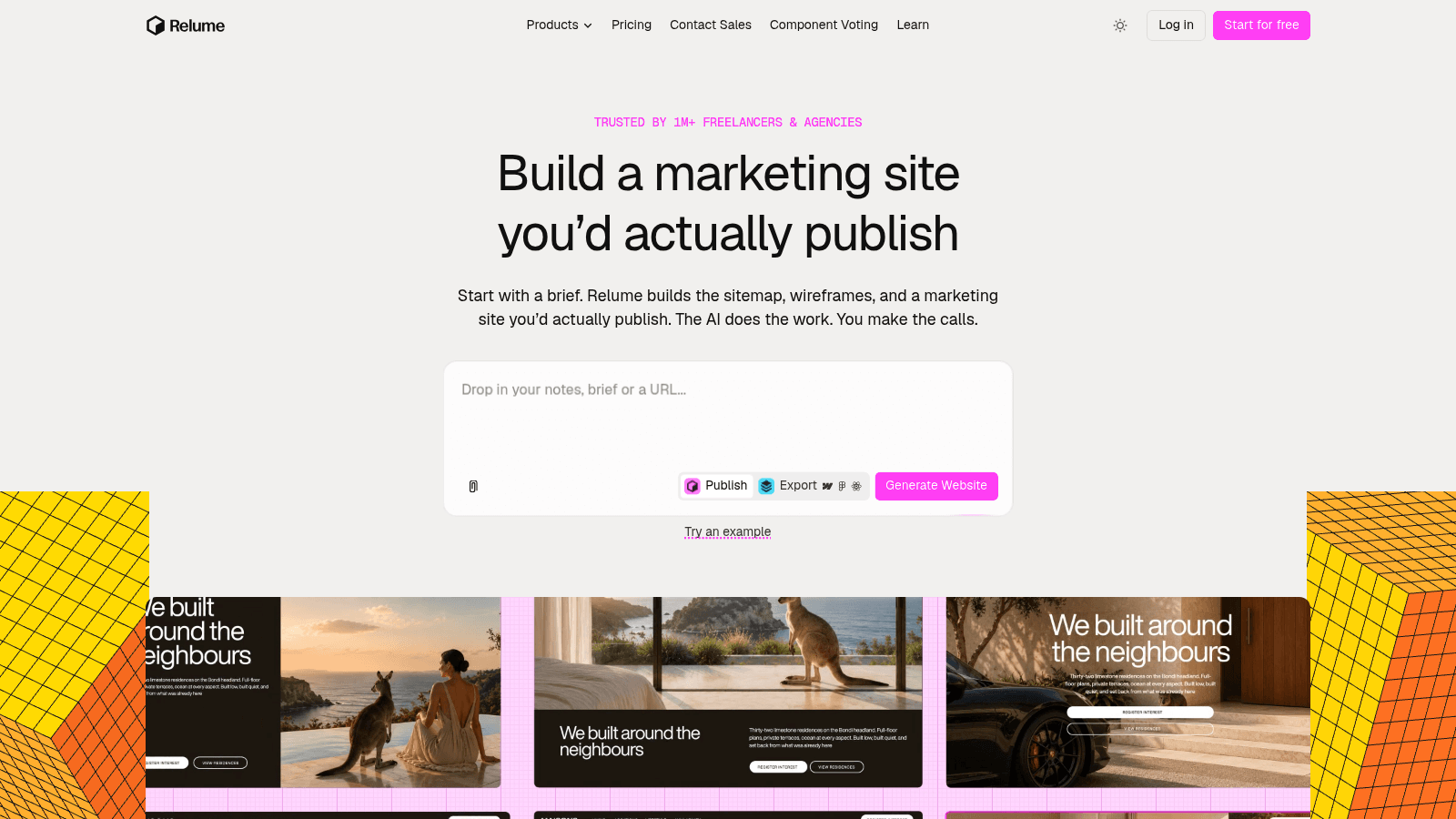
Overview: Relume generates site structure and wireframes from a brief, backed by a Webflow component library. Its own pitch: start with a brief, and it builds the sitemap, wireframes and a marketing site.
Key features:
- AI sitemaps, so page structure is agreed before visual design
- Wireframes built from library components, so layouts hand off cleanly to Webflow
- A free Figma-to-Webflow component kit, so designers and builders share parts
Pricing: Free forever costs $0 with 1,500 page views on a relumesite.ai subdomain and roughly one landing page of AI usage. Launch hosting is $12 a month per site and the Pro AI add-on $14 a month, both billed annually.
Pros: unlimited sites and collaborators on free, sitemap-first structure, a direct Webflow path
Cons: Webflow-centric, metered AI usage, not a general UI editor
Who it suits: Marketing teams building in Webflow who want structure settled before anyone designs pixels.
Final verdict: A quick start for a Webflow marketing site, and a detour for app interfaces.
10. Lunacy
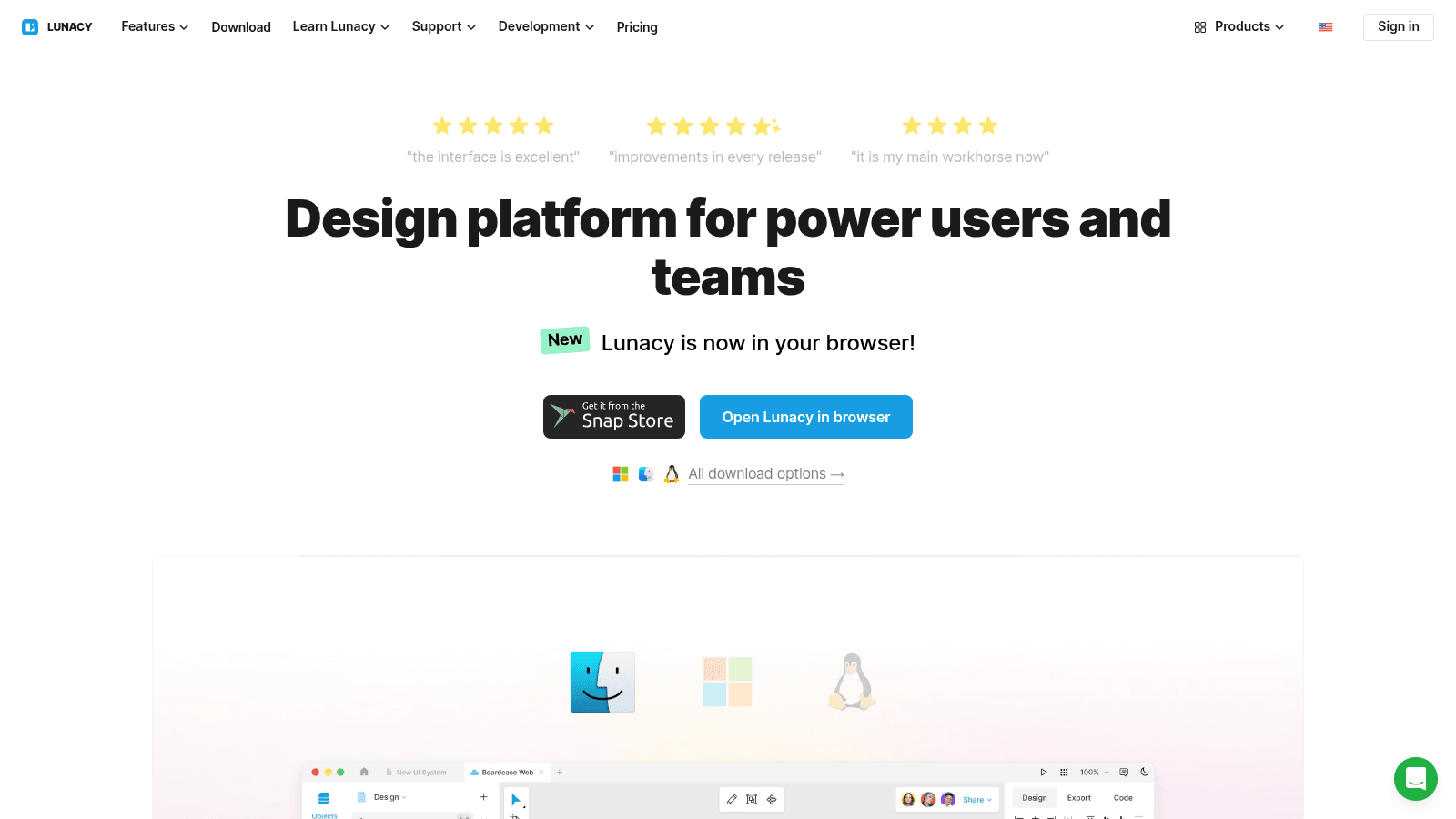
Overview: Icons8's design app runs natively on Windows, Mac and Linux, and now in the browser. Its free plan makes it a zero-cost desktop editor for teams that aren't on Macs.
Key features:
- Native apps on all three desktop systems, so designers off the Mac get a real editor
- A built-in icon and illustration library for placeholder art
- A Figma-to-.sketch converter, so files move between the two formats
Pricing: Free covers 10 cloud documents and 30 days of version history, and its built-in graphics need an Icons8 attribution link. Pro is $11.99 per user a month billed yearly, and Enterprise is a custom self-hosted private cloud.
Pros: runs on Linux, a capable free tier, assets included
Cons: free graphics need attribution, free downloads skip SVG and high-res PNG, a 10-document cloud limit on free
Where it earns its place: An editor and an asset library in one free download cover a lot of early mockup work.
Final verdict: A practical free choice off the Mac, provided attribution is acceptable.
How we chose these UI design tools
Every tool had to handle at least one of the five jobs above well enough that a working designer would pick it. We read each vendor's own product and pricing pages in September 2026, and every price comes from those pages.
Research, testing and prototype-first tools went to their own lists, and CAD or packaging software was out, since product design software for physical goods solves a different problem from laying out a screen. Where a tool changed owners or repositioned, as with Affinity under Canva, its entry says so.
We rated Awesomic Studio level with Figma and Penpot, not above them: Figma covers more of the core job, from vector drawing to branching, and Studio's strength is the step before it.
What to look for in UI design software
Feature lists look alike on pricing pages, so test these on a free plan or trial first:
- Components with variants and a shared library that updates every file
- Handoff that lets engineers inspect specs without asking you
- Vector tools good enough for icons, or a clean path in from Illustrator
- How long version history lasts, and whether branching exists
- The platforms it runs on, since Sketch edits only on a Mac
- What the AI generates, and whether credits reset or run out
Contrast needs its own check, since a palette that looks refined on a designer's monitor can still be hard to read. The W3C's WCAG 2.2 sets a minimum contrast ratio of 4.5:1 for text (3:1 for large-scale text) and 3:1 for user interface components and graphical objects, such as a field border or an icon.
A tool that shows the ratio as you pick colors can save you a failed accessibility review. Otherwise, add a contrast checker and test each color pair in your design system once.
Best software for UI design and vector editing
Interfaces are full of vector art: icons, logos and illustrations. Vectors stay sharp at any screen density, so where you draw them matters nearly as much as where you lay out screens.
Illustrator ($22.99 a month on an annual plan) is built for professional vector artwork, and Affinity puts vector, pixel and layout work in one desktop app, free for individuals.
Figma Draw puts vector illustration inside the UI file itself, which saves an export round trip for everyday icons. Lunacy's free native editor ships with an icon library, though SVG icons and high-resolution PNGs need a paid graphics plan.
Whichever tool draws the asset, the handoff into your UI file works the same way:
- Draw each icon on one fixed grid, such as 24 by 24 pixels, so the set shares a visual weight.
- Export it as SVG, the vector format browsers and design tools both read.
- Import it into your UI tool and make it a component.
- Swap every placed copy for that component, so one edit updates every screen.
That last step keeps a small icon change from becoming forty manual edits.
Top software for version control in UI design
Version control means two things: a history you can roll back through, and branches where someone can try a change without touching the main file. For branches, the top software for version control in UI design on this list is Figma on Organization, or Framer on Pro when you're versioning a live site.
| Tool | What you get | Plan it starts on |
|---|---|---|
| Figma | Branching and merging (Professional has version history only) | Organization, $55 per Full seat, billed annually |
| Framer | Branching with previews, for site content and structure | Pro, $30/month, billed yearly |
| Sketch | Linear version history, no branching | Standard, $12 per editor/month, billed yearly |
| Penpot | Version history: 7 days free, 30 days on Unlimited | Professional, free for up to 8 people |
| Lunacy | 30-day version history | Free |
Abstract, the add-on many Sketch teams once used for versioning, is gone: its old product domain, goabstract.com, no longer resolves, and abstract.com now belongs to an unrelated venture capital firm.
Shared libraries add a twist. One designer on Reddit described how updating a component library changed past designs too, which makes handing developers a frozen spec awkward; replies pointed to named versions or branching as workarounds. That's one practitioner's account, not a survey.
Without branches, name a version at every handoff (say, "v2.3, sent to engineering") and treat that version, not the live file, as the spec. Named versions also make a design system audit possible, because you can compare what shipped with what the library says now.
Best AI tools for UI design, and where they stop
Google Stitch (prompt to app or web UI, free in beta) and Relume (sitemaps and wireframes for Webflow) are built around AI generation. Figma, Framer, Illustrator, Affinity and Lunacy add AI to an existing editor instead.
Even the best AI UI design tools share a weakness. In a March 2026 thread on Reddit, most replies agreed the output still looks generic, and one blamed training data for the same Tailwind layouts and card patterns ("the training data is the ceiling"). Another commenter said Stitch needs "an actual back and forth" to get past that. That's practitioner opinion, not a benchmark.
Sameness isn't all bad. In a 2012 study in the International Journal of Human-Computer Studies, Tuch and colleagues found that visual complexity and prototypicality affected people's aesthetic judgments of websites after as little as 17 milliseconds of exposure. Sites with low visual complexity and high prototypicality were rated most beautiful.
A familiar, uncluttered AI layout therefore starts well on first impressions. What it can't supply is the detail that makes a product yours, such as microinteractions and the states between screens. To push a generator past its defaults:
- Paste real headings, labels and data instead of letting it invent placeholder copy.
- Attach a reference screen or brand file for it to match.
- Try a second model where the tool offers one, such as Stitch's model selector.
- Change one thing per round instead of regenerating the whole screen.
After that, rebuild the result in your canvas tool with your own components, so it inherits your design system.
How to choose the right UI design tool
Many teams end up with two tools: a canvas for components and handoff, plus one for vector assets or AI drafts. Start from the job that eats most of your week.
| If most of your week goes to... | Start with | Why |
|---|---|---|
| Keeping a team's design system in sync | Figma | Components, Dev Mode, branching on Organization |
| Getting from a brief to several directions | Awesomic Studio | Three image models, one brand workspace |
| Drawing icons and illustrations | Illustrator or Affinity | Deep vector tools, Affinity free for individuals |
| Keeping files on your own servers | Penpot | Open source and self-hostable |
| Designing alone on a Mac | Sketch | Native app, one-time license |
| Designing on Windows or Linux for free | Lunacy | Native apps on all three systems |
| Shipping a marketing site yourself | Framer, or Relume for Webflow | Design and publish in one place |
| Testing layout ideas at no cost | Google Stitch | Free in beta, Figma export |
A clickable flow that users can test is a different deliverable from a finished screen, and prototyping tools are judged on interaction depth rather than drawing quality.
How much UI design software costs
Prices here fall into five pricing models, and the seat structure matters as much as the headline number.
| Pricing model | Typical monthly cost | Examples from this list |
|---|---|---|
| Free tier | $0 | Figma Starter, Penpot (up to 8 people), Affinity, Lunacy, Framer, Relume, Google Stitch (beta) |
| Low-cost seat or site | $7–$12 | Penpot Unlimited ($7/user, $175 cap), Framer Basic ($10), Lunacy Pro ($11.99/user), Sketch Standard ($12/editor), Relume Launch ($12/site) |
| Mainstream paid seat | $16–$30 | Figma Professional ($16), Illustrator ($22.99), Sketch Professional ($24), Framer Pro ($30) |
| Admin and enterprise seat | $44–$90 | Sketch Enterprise ($44), Figma Organization ($55), Figma Enterprise ($90) |
| AI usage budget | $20, $200 or $500 | Awesomic Studio Basic, Pro and Maximum |
Framer, Lunacy, Relume and Sketch quote yearly-billed rates, as do Figma's Organization and Enterprise seats. Penpot caps Unlimited at $175 a month, and at $7 a user that ceiling arrives with the 25th user, so seats beyond it add nothing. Figma, Sketch and Framer charge nothing for viewers on paid plans, so buy seats only for editors.
Free tiers each hold something back: Figma Starter caps AI credits, Penpot keeps 7 days of history, Lunacy Free asks for Icons8 attribution on its graphics, and Framer Free sites live on its subdomain. If you only need AI tools for UI design concepts, Stitch costs nothing during its beta.
Even a $90 seat costs far less than the person using it, so the bigger decision is who runs the tools. The trade-offs between freelancers and an agency for UI work come down to availability, consistency and how much context carries between projects.
Which two tools to start with
Pick the canvas first, because it holds your components and every handoff. Teams wanting design, handoff and AI in one tool land on Figma, teams that must host their own files land on Penpot, and a solo Mac designer can buy Sketch once.
Add the second tool for whatever gap remains: Illustrator or Affinity for heavy icon work, an AI generator such as Stitch when the blank page is the slow part. No single best UI design software fits every team, so trial both on a real screen from next week's work and decide within one sprint.
Sometimes the gap isn't software. If the backlog grows because nobody has time to design, a UI designer will clear it faster than another subscription, and we can match you with one through Awesomic in up to 24 hours.
FAQ
What are the best tools for UI design if you're starting out?
Start with a free canvas: Figma Starter includes unlimited drafts, and Penpot lets a team of up to 8 work free on Professional. On Windows or Linux, Lunacy's free native app is a good first editor, and Google Stitch gives you free AI drafts to react to during its beta.
What are the best AI UI design tools in 2026?
The best AI tools for UI design on this list start from a prompt rather than a blank canvas. Among them, Google Stitch is free while Google keeps it in beta and exports to Figma or code, and Relume generates Webflow sitemaps and wireframes on a free plan. Expect to refine any AI draft in an editor before it ships.
Is Figma still the best UI design software for teams?
We think it's the safest fit for most teams, because design, Dev Mode handoff and AI generation share one file, with free viewers on every paid plan. The catch is cost at scale: branching and merging need Organization seats at $55 a month, billed annually. Penpot suits teams that need self-hosting, and Sketch suits all-Mac teams.
What's the best software for UI design and vector editing in one tool?
In our view, Figma comes closest, since Figma Draw adds vector illustration to the same file as your screens. We'd still pick Illustrator ($22.99 a month) for detailed illustration or a large icon family, though it isn't built for several people editing one interface. Affinity offers individuals vector and pixel tools free, in one desktop app.
What's the difference between UI design tools and UX design tools?
UI design tools draw the interface itself: layouts, components, colors, type and icons. UX design tools study how people use it, through usability tests, surveys, session recordings and research repositories. Some products straddle both, Figma among them, but many teams buy research software separately from their design canvas.
One subscription and your hiring problems solved

FAQ


Awesomic is a revolutionary app that matches companies with vetted professionals across 30+ skill sets, from design and development to marketing and product. Based in San Francisco with a global core team, we offer a faster and more flexible alternative to traditional hiring through a subscription-based model. Awesomic delivers high-quality talent on demand, without the delays of recruiting.
We function as a subscription-based service that matches you to top-tier, vetted talent. Submit a project in just a few clicks and start receiving deliverables in as little as 24 hours. Scale your Awesomic plan up or down as your business needs change.
Every Awesomic subscription comes with unlimited revisions. You receive daily progress updates via the app, and you can provide feedback or request iterations as needed. If your project requires a different approach, you can request a talent rematch at any time, at no extra cost. You can also add teammates to collaborate and streamline feedback
A talent marketplace is a platform that utilizes data and intelligent matching algorithms to connect professionals with projects based on their skills, experience, and availability. While often used internally by large companies, Awesomic applies this model at scale, matching vetted global talent to your most critical business needs.
Hiring is time-consuming, expensive, and risky. Awesomic eliminates that problem. We rigorously vet all talent for technical ability, communication, and soft skills, ensuring only senior-level professionals work on your projects. You skip the job posts, interviews, and delays, and get straight to results.
No, Awesomic goes beyond design. While many clients utilize us for branding, UI/UX design, or motion graphics, we also provide vetted talent in no-code web development, product design, marketing, and more. Think of us as an extension of your team. A flexible, high-performing creative partner from planning to execution, whether you're building awesome products or scaling your team.
You can talk directly with your matched talent via the Awesomic app, connect via Slack, email, or schedule video calls. No matter the plan, you’ll receive daily updates in the app for every active task. You can also tag us in for any issues through our in-app customer chat.


