




9 Best Prototyping Tools in 2026

Key takeaways:
- Prototyping tools now come in two kinds: interactive tools that link screens and add logic (Figma, ProtoPie, Axure RP), and AI prototyping tools that write real code from a prompt (Lovable and Bolt).
- Five of the nine list a $0 plan up front: Figma, ProtoPie, Justinmind, Lovable and Bolt. UXPin and Proto.io lead with 14- and 15-day free trials, then drop you to a limited free plan.
- Polish doesn't find more problems: in a 2002 study, rough and polished prototypes surfaced usability issues equally well, so buy the fidelity your test needs.
- Choose by the test you're running next: logic and forms (Axure RP, Justinmind), sensors and devices (ProtoPie), production components (UXPin), or a live page a tester can use (Lovable, Bolt).
Prototyping tools let you put a product in front of people before anyone builds it: a flow they can click, a form they can fill in, a screen that reacts when they tilt the phone.
In 2026 the category has split in two. Interactive tools link your screens and add conditions and variables, while AI prototyping tools take a prompt and write the code, so the prototype is already a working page.
This list is for product designers, founders and PMs picking the best tools for prototyping their next round of tests, and it covers both kinds. Wireframing, research and testing tools belong to our UX design tools list, and visual design and vector editing to our UI design tools list.
We ranked our own Awesomic Studio first, since we built it for the AI side of this job, and we'd rather say that up front. Every price quoted for the other eight comes from that vendor's own pricing page, checked on September 11, 2026.
What are prototyping tools?
A prototyping tool turns static screens into something a person can use. The simplest ones link screens with hotspots, while the more capable software prototyping tools add state, so a prototype can remember what a tester typed, branch on a condition, or respond to a sensor.
That's where prototyping stops overlapping with interface design. Drawing the screens, setting type and editing vectors is the work our UI design tools roundup ranks; a prototyping tool is where those screens start to behave.
A useful split is by what you're testing. UX prototyping tools test the path through a product, such as whether a new user finds the export button, while UI prototyping tools test how it looks and moves, such as a transition or a hover state.
The AI prototyping platforms stretch the definition: Lovable and Bolt generate the product instead of simulating it, so the prototype is running code from the first prompt.
The 9 best prototyping tools in 2026
Here are all nine side by side, in ranked order. Each price is the lowest plan listed up front on the vendor's own pricing page, and the rating measures fit for this list's job (getting a testable prototype in front of real people) rather than overall quality.
| Tool | Best for | Key features | Main limitation | Pricing (from) | Rating |
|---|---|---|---|---|---|
| Awesomic Studio | Working prototypes on a live link | Coding agents, built-in hosting, human takeover | No published cost per build | $20/month | ★★★★★ |
| Figma | Design, prototype and handoff in one | Conditional logic, variables, Smart Animate | Advanced logic takes learning | $0 (free) | ★★★★★ |
| ProtoPie | Sensor and multi-device interactions | Camera and gyroscope triggers, ProtoPie Connect, Figma import | Per-editor pricing adds up | $0 (free) | ★★★★★ |
| Axure RP | Logic-heavy, spec-grade prototypes | Conditions, working forms, dynamic panels | Steep learning curve, desktop app | $29/user/month | ★★★★☆ |
| UXPin | Prototypes from production components | Merge, coded libraries, Figma import | Merge workflow takes learning | $29/seat/month (annual) | ★★★★☆ |
| Justinmind | Form-heavy, data-simulated flows | Data simulation, device emulator, HTML export | Free plan holds one project | $0 (free) | ★★★★☆ |
| Proto.io | Fast, simple clickable flows | Unlimited reviewers, broad imports, HTML export | Active-project caps below Enterprise | $24/month (annual) | ★★★★☆ |
| Lovable | Turning an idea into a working app | Chat-to-build, GitHub sync, design systems | Credits spent per action | $0 (free) | ★★★★☆ |
| Bolt | A prototype that deploys as a web app | In-browser IDE, one-click deploy, custom domain | Token-metered iteration | $0 (free) | ★★★★☆ |
Ties are deliberate. Figma, ProtoPie and Studio each suit a different kind of prototype, so which five-star pick is right depends on what your test has to prove.
1. Awesomic Studio
Best for: Working prototypes on a live link
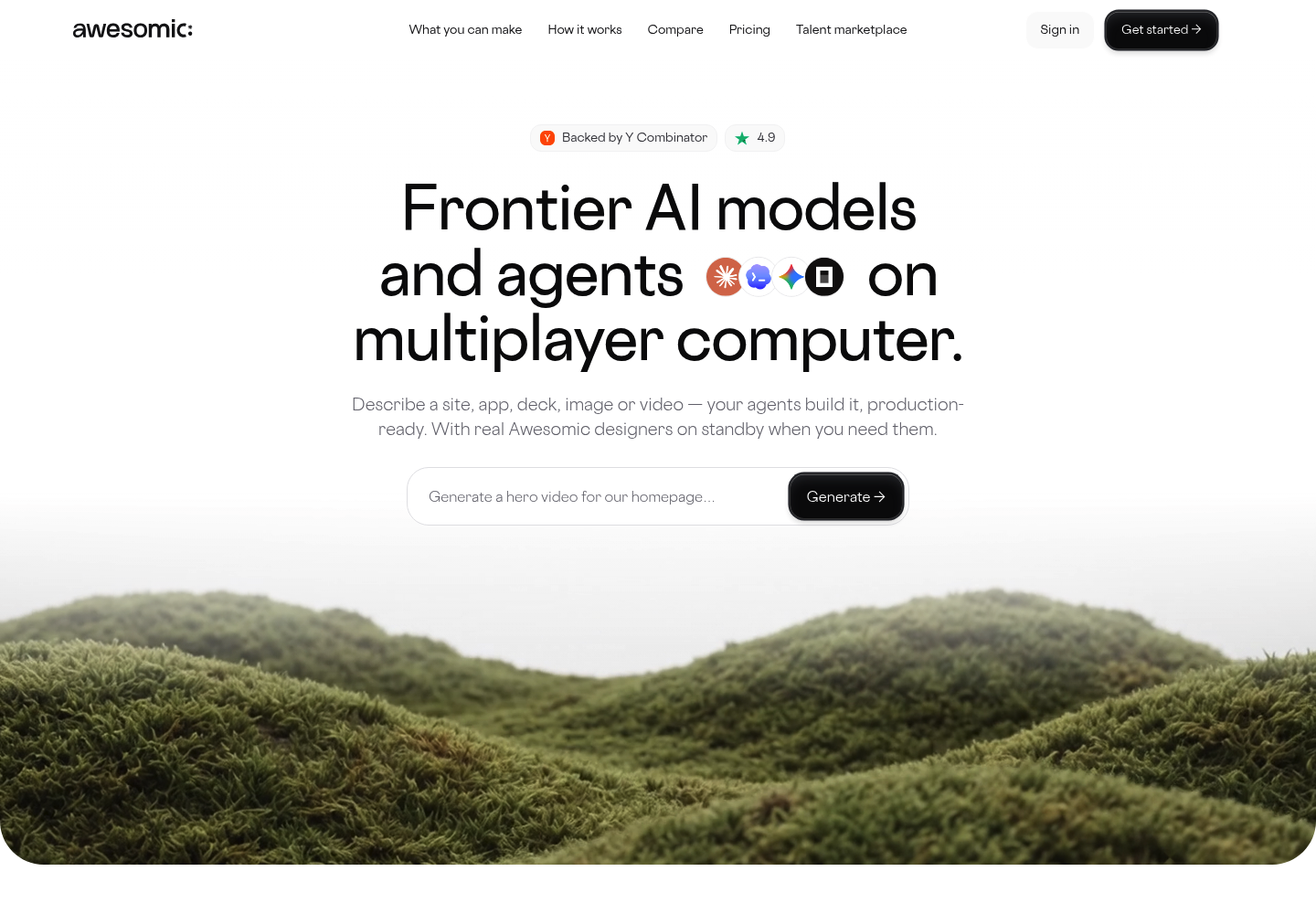
Overview: Awesomic Studio is our AI workspace for prototypes that have to behave like the real thing. You describe the flow in plain words, and coding agents (Claude Code, Codex and OpenCode) write and build it, so what comes back is a working page rather than linked frames.
Studio hosts the result, so a tester gets a URL instead of a viewer app, and you decide whether the link is private to your team or public. When engineering takes over, the work exports to code or other tools.
We built in a human safety net. If the agents can't get a flow right, a vetted Awesomic designer or developer, from the talent behind our 20,000+ delivered projects, picks up the workspace where the agents left it, then hands it back.
Key features:
- Coding agents that write real code, so forms and navigation respond like a live site
- Built-in hosting, so every build has a link you can paste into a test invite
- Private or public sharing, so one prototype serves a team review and an open test
- Export to code or other tools, so an approved flow can move on
- Agents that keep working after you close the tab, so long builds don't need watching
- A human takeover on demand, so a stuck flow gets finished by a person
Pricing: The plan price is the budget: $20 a month on Basic buys $20 of agent work, and Pro and Maximum raise it to $200 and $500. We don't publish a rate per model or per build, and there's no free plan or trial.
Pros: real code instead of a clickable mockup, a live link on every build, a person on standby when agents miss, connections to Figma, GitHub and six other tools, a monthly spend you set up front
Cons: no published cost per build (you learn the burn rate by building), output only as good as the brief
How to start using it:
- Choose Basic, Pro or Maximum; the price is also the month's build budget.
- Describe the flow: the screens, the path a tester should take and what each button does.
- Let the agents build it, then click through the live link yourself.
- Share the link privately for a team review or publicly for a test round.
- If a flow won't come right, hand it to an Awesomic designer or developer.
Why it's a good prototyping tool: A prototype that runs as code answers questions a clickable mockup can only fake, such as whether a form validates on a phone. Because Studio hosts it, reaching testers takes a link, not an export.
Final verdict: Pick Studio when the next test needs a working page and you'd rather describe it than wire it. If every component must match a Figma library exactly, a design-first tool further down will fit better.

2. Figma
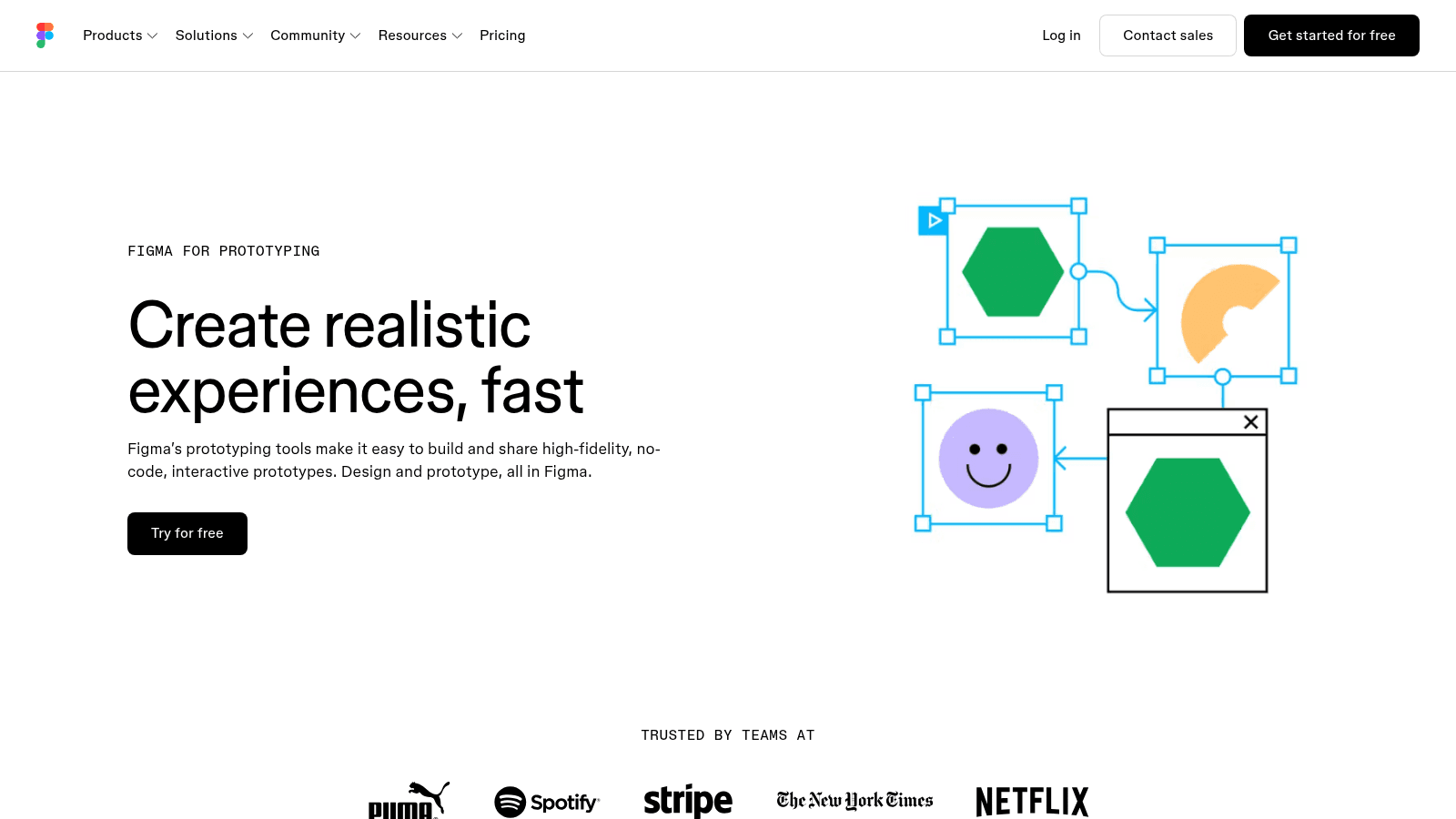
Overview: Figma puts design, prototyping and developer handoff in one tool, so the prototype uses the screens your team already drew. Figma Make, its prompt-to-code AI feature, adds an AI route.
Key features:
- Conditional logic, variables and math expressions, so a prototype can track a value and branch on it
- Smart Animate and rich media (GIF, video), so motion looks close to the real product
- Device preview, so a mobile flow gets tested on a real phone
Pricing: Starter is free, with capped AI credits. Professional prices by seat ($16 a month Full, $12 Dev, $3 Collab); Organization ($55 Full) and Enterprise ($90 Full) bill annually only.
Pros: no export step between design and prototype, a free Starter plan, a $3 Collab seat
Cons: variables and conditional logic take real learning, AI credits capped per seat, annual billing on Organization and Enterprise
Why it's a good prototyping tool: When the question is about a flow, not sensors or production code, Figma answers it without a second app.
Final verdict: The sensible default for teams already designing in Figma.
3. ProtoPie
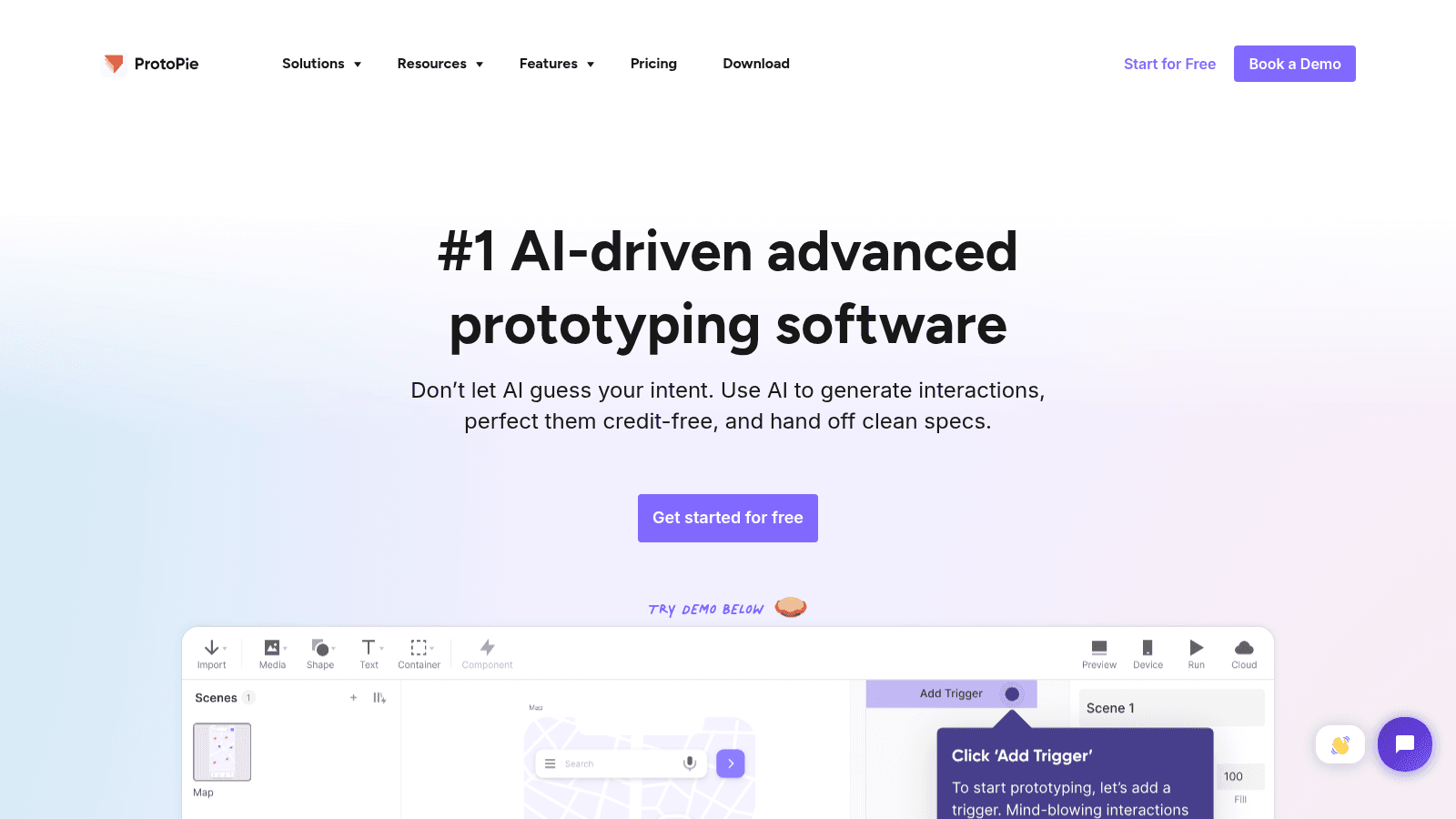
Overview: ProtoPie builds prototypes that respond to the device itself: its camera, its audio input, the phone's tilt. It now leads with AI and calls itself "#1 AI-driven advanced prototyping software," though hardware realism is still its edge.
Key features:
- Camera, audio and gyroscope triggers, so a prototype reacts to a scan, a voice command or a tilt
- ProtoPie Connect, so a phone can drive a second screen in one test
- Import from Figma, Sketch and Adobe XD, so you animate screens you've already designed
Pricing: Free covers 2 prototypes and 8 scenes in 50MB, Basic is $25 a month for one seat and 20 watermark-free prototypes, and Pro is $47 per editor per month with no prototype cap. Enterprise is custom, with a three-seat minimum, SSO and custom hardware integrations.
Pros: sensor triggers without code, AI-generated interactions, a working free tier
Cons: per-editor pricing adds up, storage capped by tier, custom hardware integrations sit on Enterprise
Its real strength: Interactions a mouse can't simulate, like a gesture, a voice command or two synced devices.
Final verdict: The right pick when the interaction itself is what you're testing.
4. Axure RP
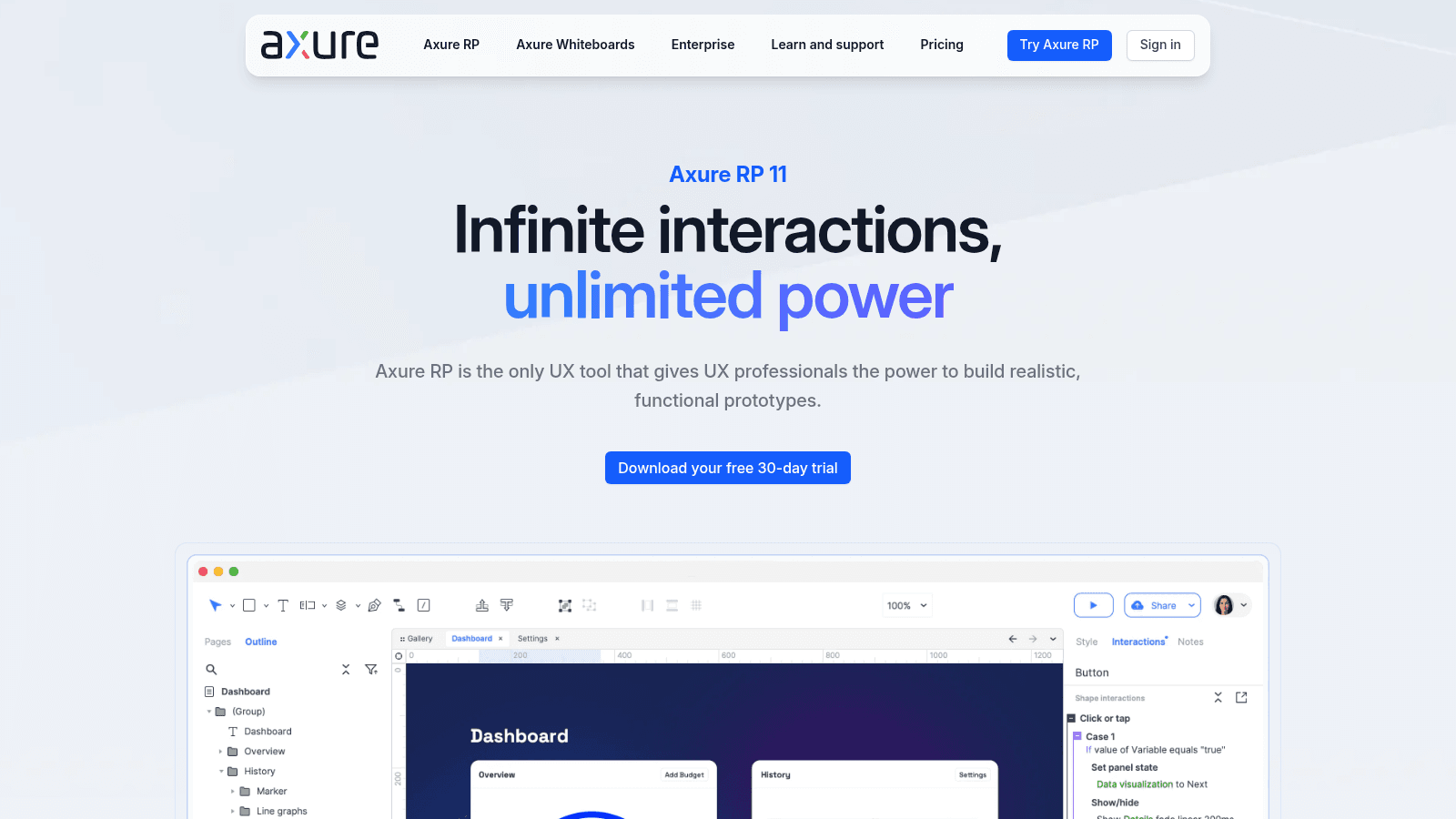
Overview: Axure RP is a desktop app for prototypes that need real logic: branching flows, working forms and data tables. It's subscription only now, since Axure "no longer offers perpetual licenses," per its own FAQ, though existing perpetual licenses are unaffected.
Key features:
- Unlimited event, condition and action combinations, so a flow can branch on almost anything
- Working forms, data-driven tables and dynamic panels, so a data-heavy screen behaves like the real one
- Built-in specs and documentation, so the prototype doubles as the engineering brief
Pricing: Pro costs $29 per user per month and Team $49, which adds co-authoring and revision history. Enterprise is priced on request, with on-premises Axure Cloud and SSO.
Pros: logic deep enough for enterprise flows, specs beside the prototype, on-premises hosting on Enterprise
Cons: a steep learning curve, a desktop app to install, no perpetual license for new buyers
Where it beats the alternatives: Enterprise flows with many states and rules, where a simpler tool would make you fake half the logic.
Final verdict: Worth the learning curve when a prototype must settle how a complex system behaves.
5. UXPin
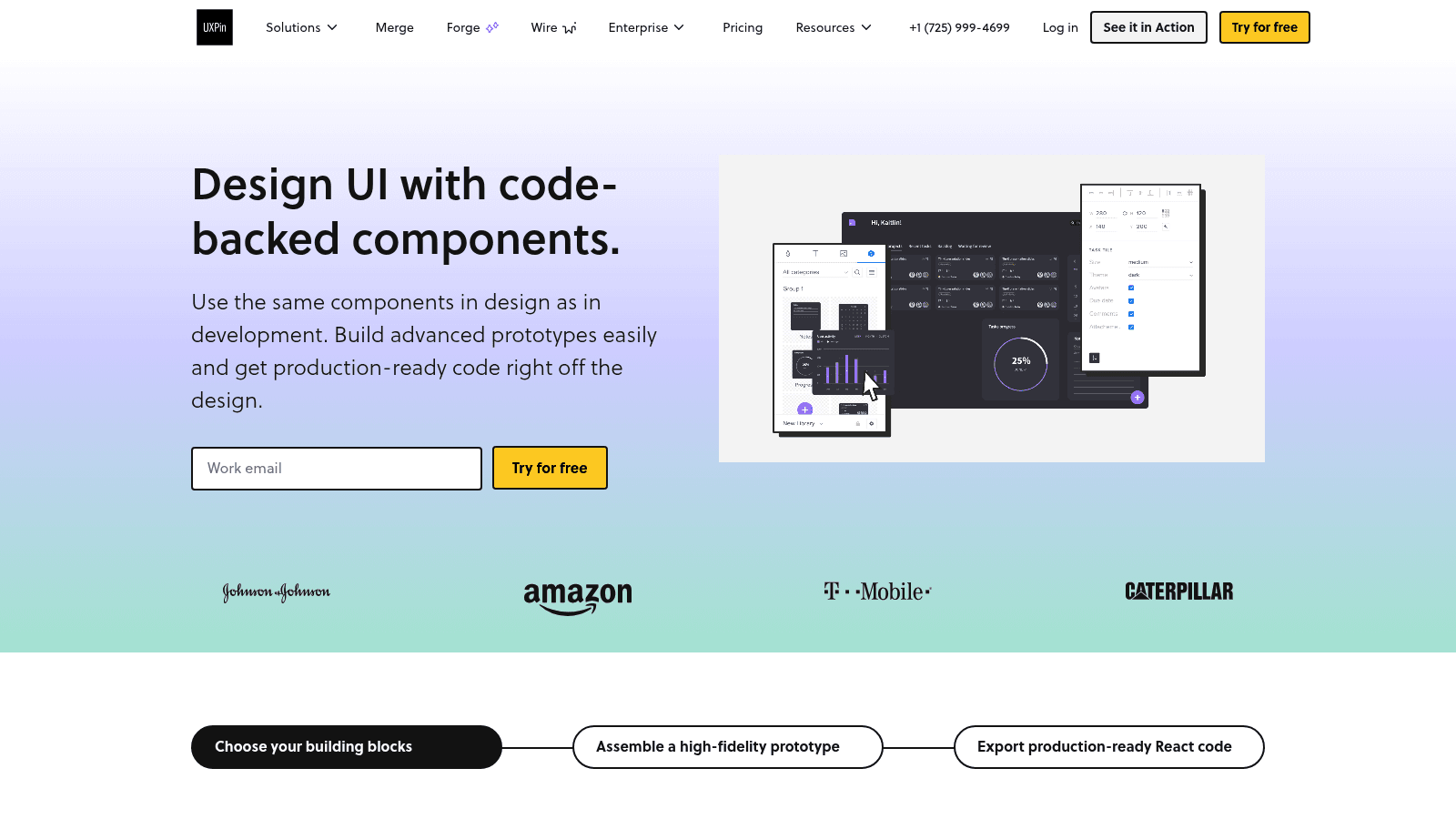
Overview: UXPin markets itself as AI-powered, code-based prototyping, and the code is the reason to look. Prototypes use coded components, including your own production ones through Merge, so testers click something close to what engineers ship.
Key features:
- Coded libraries (MUI, Bootstrap, Tailwind, Ant Design, shadcn/ui), so components behave like their coded versions
- Merge, which brings production components into the editor, so prototype and product share parts
- Conditional logic, variables and expressions, plus a Figma import plugin
Pricing: Essential is $29 per seat per month billed annually, or $49 monthly, with 200 AI credits. Advanced is $40 annually or $69 monthly for 500 credits, design systems and Storybook, and Enterprise is custom, with a custom credit allowance and Git integration.
Pros: real components in the prototype, a 14-day no-card trial, Figma import
Cons: Merge takes time to learn, AI credits capped even on Advanced, Storybook and SSO start at $40 a seat
Why teams shortlist it: Handoff arguments shrink when testers click the same components the product ships with.
Final verdict: A strong fit for teams with a mature coded design system.
6. Justinmind
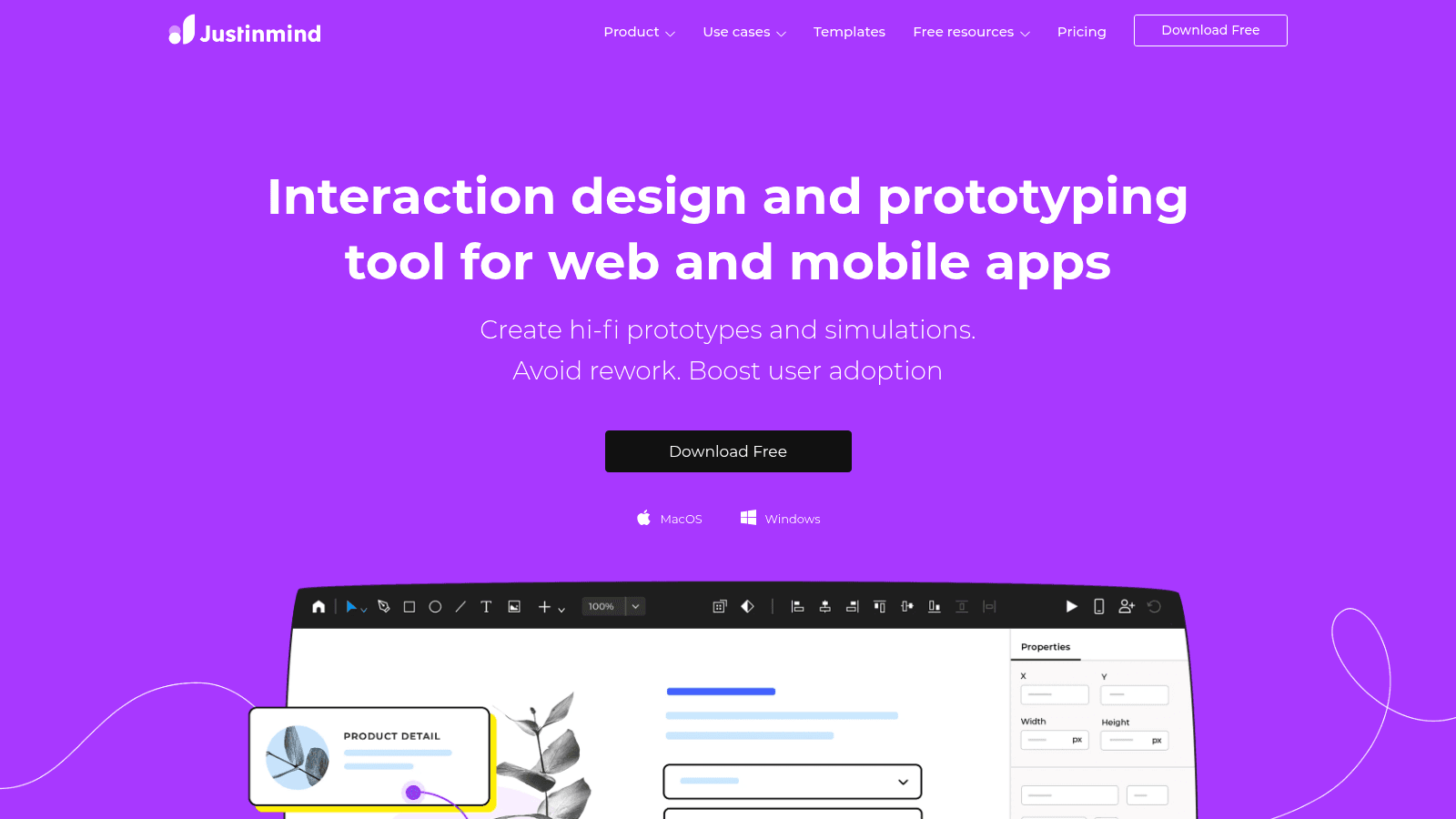
Overview: Justinmind builds form-heavy prototypes without code, with variables and simulated data doing work that would otherwise need a developer. Its free plan covers one project.
Key features:
- Variables and data simulation, so a form accepts input and shows a believable result
- A device emulator plus gestures, so a mobile flow gets tested as one
- Masters, templates and HTML export, so repeated elements stay consistent and output opens in a browser
Pricing: Seats are priced per editor per month: $0 on Free, $19 on Standard, $29 on Professional and $59 on Enterprise. That top tier is where SSO plus Jira and Azure DevOps integration appear.
Pros: a usable free plan, data simulation without code, HTML export
Cons: one project on Free, variables and form design start on Standard, data simulation and HTML export need Professional
Where it fits: Registration flows, checkouts and settings screens, where the test depends on what happens after someone types.
Final verdict: A practical middle ground between Proto.io's simplicity and Axure RP's depth.
7. Proto.io
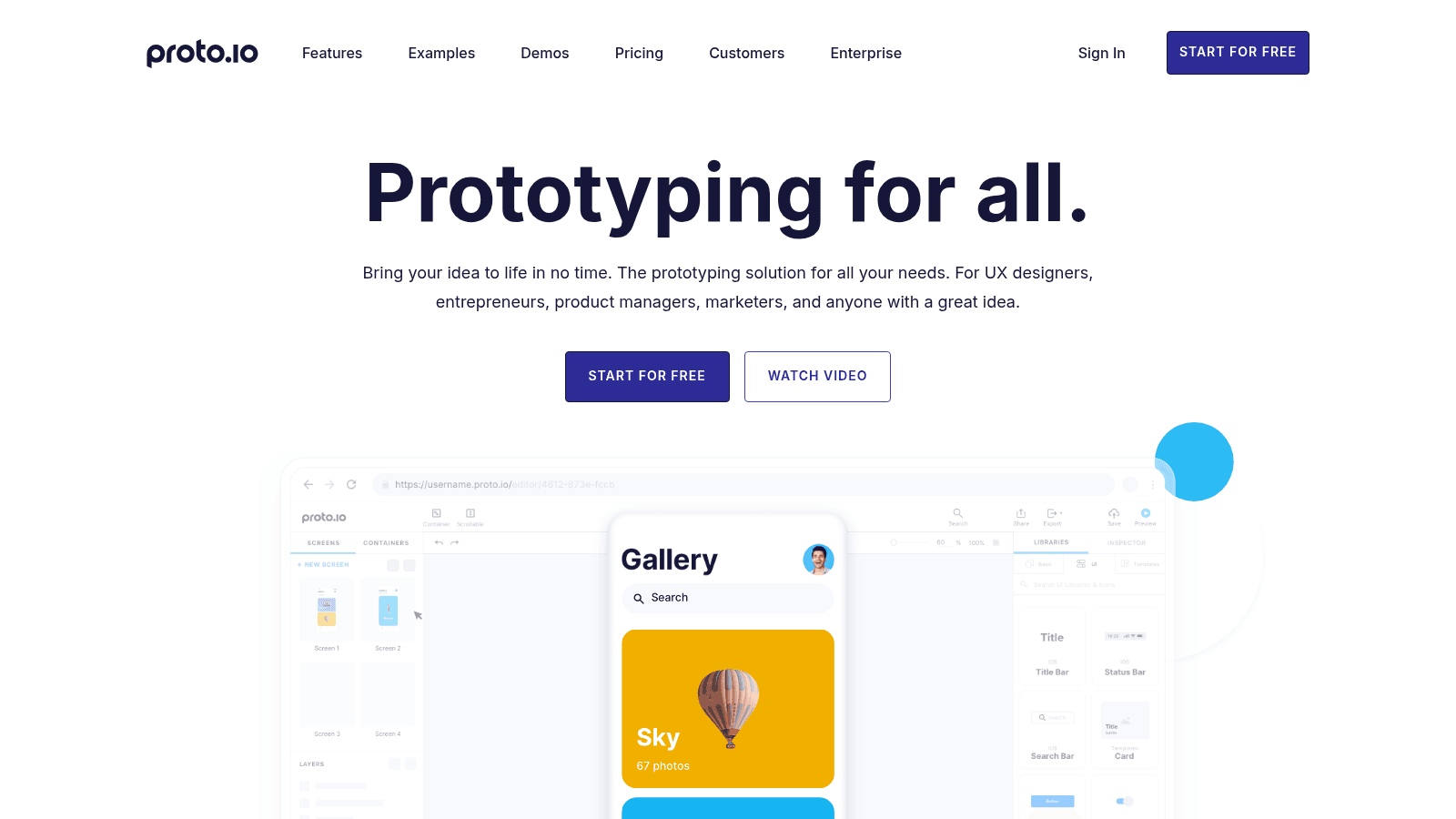
Overview: Proto.io keeps prototyping simple: import screens, link them and send the result to as many reviewers as you like. Its pitch is speed ("Bring your idea to life in no time"), which suits early flows and stakeholder walkthroughs.
Key features:
- Unlimited reviewers on every plan, so feedback isn't limited by seats
- Import from Sketch, Figma, Adobe XD and Photoshop, so you start from finished screens
- Export to HTML, PNG or PDF, so the prototype travels beyond the tool
Pricing: Plans scale by users and active projects, from Freelancer at $29 a month ($24 billed annually; one user, five projects) to Corporate at $199 ($160; ten users, 30 projects). A 15-day trial needs no card, and Enterprise is custom.
Pros: unlimited reviewers, imports from four design tools, a no-card trial
Cons: capacity capped by active projects, one user on Freelancer, a free tier only once the trial ends
Why it made this list: For a walkthrough many stakeholders must review, unlimited reviewers beat per-seat pricing.
Final verdict: Good for straightforward flows that a crowd of stakeholders needs to click through.
8. Lovable
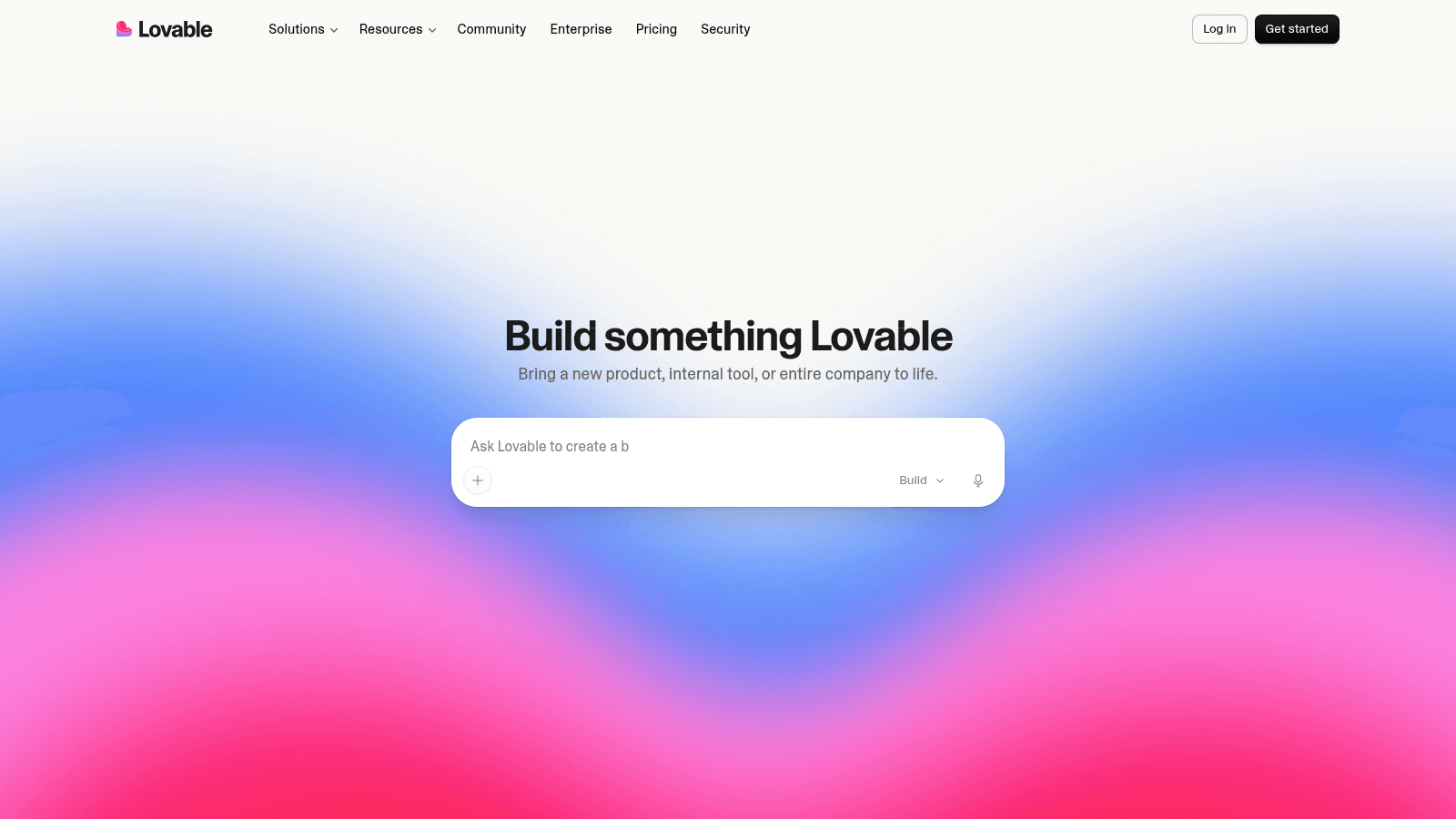
Overview: Lovable turns a chat into a full-stack app you can click through. It has repositioned as an "AI App Builder," so the first prompt already produces an app rather than a mockup.
Key features:
- Chat-to-build full-stack apps, so a tester can sign up, save data and return
- GitHub sync, so the code lives in a repository your developers can open
- Design-system support, so a build follows your own components
Pricing: Pro is $25 a month for 100 credits and custom domains, above a Free plan. Business costs $50 for the same 100 credits plus SSO, Enterprise carries a volume-based platform fee, and each action spends credits (adding authentication takes about 1.2).
Pros: a working app rather than a simulation, code you can keep, a $0 plan
Cons: credits drain per action, custom domains start on Pro, Business adds SSO but no extra credits
What it is genuinely good at: Turning an idea into a working app, so the first test runs on real behavior.
Final verdict: Choose it when the prototype may become the product and your team will own the code.
9. Bolt
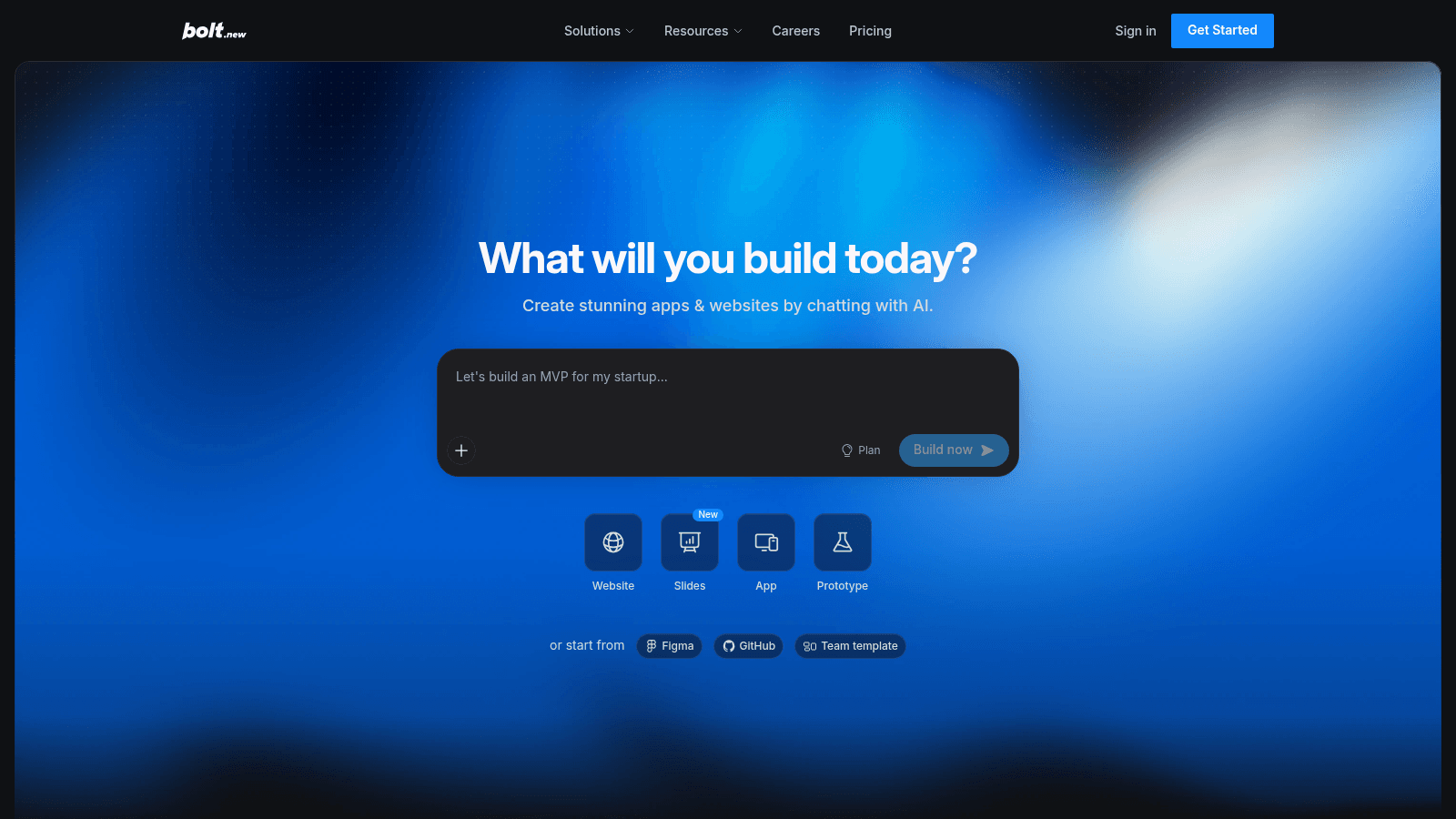
Overview: Bolt (bolt.new, owned by StackBlitz) is an in-browser IDE that builds web apps from a prompt. Its own AI prototyping page says "most prototypes are generated in under two minutes."
Key features:
- A full in-browser IDE, so you can edit the generated code in the same tab
- One-click deploy, so the prototype gets a public URL once it works
- Custom domains on Pro, so a test link can sit on your own domain
Pricing: Free gives 300K tokens a day (1M a month) with Bolt branding. Pro at $25 a month removes the daily cap and the branding and includes 10M tokens, while Teams is $30 per member per month and Enterprise is custom.
Pros: deployable output, code you can inspect, a free tier measured in tokens rather than messages
Cons: heavy iteration burns the monthly token allowance, Bolt branding on Free, a 10MB upload cap on Free
Who it suits: Designers and founders who want a deployable web app from the start.
Final verdict: A quick route from prompt to deployed test page, if you watch the token meter.
How we chose these prototyping tools
We started with the tools that rank for prototyping searches and turn up in current roundups, then read each homepage and pricing page on September 11, 2026. Four checks decided who stayed.
- It builds something a tester can interact with, not a static mockup.
- Its own site publishes a price, or says plainly that the price is custom.
- It still does the job today, and any repositioning is flagged in its entry.
- It earns its slot with a distinct strength, from sensor triggers to production components.
Two familiar names missed the cut. Vercel's v0 now pitches itself as a way to "Build Full-Stack Web Apps with AI" and its free tier stops at seven messages a day, so Bolt, which still runs a page for AI prototyping, took the slot.
Origami Studio, Meta's free tool with hardware patches and Figma import, lost out to ProtoPie, which covers similar ground with multi-device sync and published plans. Lovable made the same move as v0 and kept its place, because GitHub sync and design-system support matter once a prototype meets an existing product.
We weighted testing over polish throughout. The testing techniques that catch problems while they're cheap run before production code exists, so a tool earned credit for how quickly it gets a flow in front of a user.
What to look for in prototyping software
Five questions separate these tools more than any feature grid does. Work through them with your next test in mind.
Logic and state
If a tester has to type a value, pick an option or trigger an error, the tool needs variables and conditions. Figma, ProtoPie, Axure RP, UXPin and Proto.io all have that layer, and so does Justinmind from its Standard plan up.
The top reply in a Reddit thread about going beyond Figma named ProtoPie for input and basic logic without code, and Framer and Axure for the most complex work, while still calling Figma the best choice when you care about a production chain that just works.
Another commenter, with more than ten years on Axure, called it arguably the most capable of the lot despite a steep learning curve. That's one thread of practitioner experience rather than a benchmark.
Device and sensor testing
A mobile flow feels different in the hand than on a monitor. Figma has device preview and Justinmind a device emulator, while ProtoPie adds camera, audio and gyroscope triggers and syncs several devices through ProtoPie Connect.
Handoff to engineering
Ask what developers get at the end. Axure RP builds specs into the file, Justinmind and Proto.io export HTML, UXPin's Merge uses production components, and the AI builders hand over the code itself.
On teams practicing design-driven development, engineers build from an approved design, so the handoff format decides how much of the prototype survives into the product.
Sharing and review
Count the people who need to see the prototype. Proto.io includes unlimited reviewers on every plan, Figma lets unlimited viewers open and comment on a file for free, and Lovable and Bolt publish the build to a live URL.
Metered AI
Every AI feature named on this list comes with a meter. Figma caps AI credits per seat, ProtoPie bundles AI credits from Basic up, UXPin includes 200 or 500 a month by plan, Lovable spends credits per action and Bolt meters tokens.
Credits don't translate into a price per prototype, so build one small flow on the entry plan and watch the meter before you commit.
When AI prototyping tools beat a clickable prototype
AI prototyping tools earn their place when the question needs real behavior: whether signup validates, whether a dashboard reads well with realistic data, whether a tester can finish a task unaided. Bolt's own pitch is measured in minutes, and even allowing for vendor optimism, a prompt can reach a first version faster than wiring every state by hand.
The weak spot is matching what you've already designed. A designer on Reddit who tested Make, v0, Cursor and Magic Patterns said none of them helped their workflow.
Even from clean, auto-layout Figma files, the design took about 20 prompts to get right at first, and the team's developers said the code would take longer to fix than to rebuild. For them, standard Figma prototypes were quicker.
That's one practitioner's report, and it hands you a fair trial test: feed the tool your own screens and count the prompts it needs to match them.
Interactive tools still win when the prototype has to match a design system exactly, when the test is about motion or sensors, or when engineering needs a spec rather than someone else's code.
Among the best AI prototyping tools here, Lovable and Bolt suit founders who'll keep the code, since Lovable syncs it to GitHub and Bolt opens it in an in-browser editor. Some founders start a build themselves and hand the unfinished app to one of the agencies that work in Lovable, rather than spending credits on the hardest fixes.
How to choose the right prototyping tool for your team
The best prototyping software for your team is the one that answers your next test at the lowest fidelity that still convinces people. Even leading prototyping software for UI design is the wrong buy if your test is about sensors or production components, so start from what the test has to prove.
| What the test has to prove | Start with | Also consider |
|---|---|---|
| The flow makes sense before anything is polished | Figma | Proto.io |
| Forms, rules and data behave correctly | Axure RP | Justinmind |
| A gesture, sensor or second screen works | ProtoPie | Justinmind, for gestures |
| Your coded components hold up in real use | UXPin | Lovable, via design-system support |
| A tester can finish the task on a live page | Awesomic Studio | Bolt |
| The idea works as an app people can sign up to | Lovable | Bolt |
Team size changes the math more than features do. A solo designer can often test on free plans, while a team of eight on per-editor pricing should compare seat costs before it compares features.
When nobody on the team has time to build the prototype, the tool matters less than who builds it, which is why some teams hire a prototype designer for the sprint instead.
How much prototyping software costs
Prices here come in four billing shapes, and the shape matters more than the headline number, because it decides what makes the bill grow. The table shows each tool's entry paid plan rather than its free tier.
| Tool | How it bills | Entry paid plan | What pushes the bill up |
|---|---|---|---|
| Awesomic Studio | Monthly usage budget | $20/month (Basic) | Moving to the $200 or $500 budget |
| Figma | Per seat, by role | $3–$16/month per seat (Professional) | Annual-only Organization ($55) and Enterprise ($90) Full seats |
| ProtoPie | Per editor | $25/month (Basic, one seat) | Pro at $47 per editor |
| Axure RP | Per user | $29/user/month (Pro) | Team at $49 per user |
| UXPin | Per seat | $29/month billed annually ($49 monthly) | Advanced at $40 annually ($69 monthly) |
| Justinmind | Per editor | $19/editor/month (Standard) | Professional at $29, Enterprise at $59 |
| Proto.io | Per plan, by users and active projects | $24/month billed annually ($29 monthly) | More users, and project caps from 5 to 30 |
| Lovable | Monthly plan plus credits | $25/month (Pro, 100 credits) | Credits spent per action |
| Bolt | Monthly plan plus tokens | $25/month (Pro, 10M tokens) | Teams at $30 per member |
The per-editor tools get expensive as a team grows, and the AI prototyping platforms get expensive as you iterate, because every prompt spends credits or tokens.
Five tools list a $0 plan, most capped by projects, scenes, AI credits or tokens, which is plenty for one designer testing one flow and tight for a team.
How much fidelity your prototype needs
It's tempting to buy whichever tool makes the most realistic prototype. The research is less impressed by realism than buyers are.
What the research found
Walker, Takayama and Landay tested prototypes at two levels of fidelity, on paper and on a computer, in a 2002 HFES paper. They found low- and high-fidelity prototypes "equally good at uncovering usability issues," and usability testing results "independent of medium."
A CHI 2003 study by Sefelin, Tscheligi and Giller ran 24 test sessions and found the number of critiques and suggestions statistically indistinguishable between low-fidelity prototypes on paper and on a computer. The difference was preference: "22 of the 24 subjects said that they prefer to work with a computer prototype."
Where fidelity is worth paying for
Fidelity buys comfort for testers and confidence for stakeholders more than it buys findings. Spend it where a decision depends on it: a stakeholder demo, a motion or sensor test, or a handoff engineering will build from.
Early in digital product design, a rough clickable flow is usually enough, and the full build can wait until that flow has survived a test with real users.
Picking the tool for your next test
Where prototyping sits in your UX workflow decides what the best prototyping software looks like for you. Early on, the job is a rough flow for a quick test; later, it's a spec or a working page that engineering will pick up.
Before you buy seats, run a one-week trial.
- Pick the flow that carries the most risk, such as signup or checkout.
- Build it on the free plan or trial of your top two tools.
- Put each version in front of a few users and note where they stall.
- Write down what each tool made hard, from logic to sharing.
- Buy seats only in the tool you'd happily build the next flow in.
A week is enough to see which tool fights you, and the one that fought you least is the one worth paying for.
FAQ
What are the best tools for prototyping?
It depends on what your prototype has to prove. For flows built from existing designs, Figma is the natural start; for sensors and multiple devices, ProtoPie; for complex logic and specs, Axure RP. When the prototype needs to be a working page, Lovable and Bolt build one from a prompt.
What are the best AI prototyping tools?
Our own Awesomic Studio, Lovable and Bolt all build from a prompt and hand you code rather than linked frames; Studio also hosts the result and keeps a human designer on call. Figma adds a prompt-to-code feature, Figma Make, inside its design tool. v0, Magic Patterns and Framer AI also appear in AI prototyping roundups, though v0 now pitches itself at full-stack apps.
What's the difference between UX prototyping tools and UI prototyping tools?
UX prototyping tools check whether people can get through a product: find the next step, fill in a form correctly, recover from an error. UI prototyping tools test the surface, meaning transitions, motion and how components look in use. Axure RP and Justinmind lean toward UX work, ProtoPie toward interaction and motion, and Figma covers both.
Is there good free prototyping software?
Yes, on five of the nine tools here: Bolt, Figma, Justinmind, Lovable and ProtoPie all list a $0 plan. Most cap projects, AI credits or tokens, so a free plan suits one designer testing one flow.
UXPin and Proto.io run 14- and 15-day trials with no card, then move you to a limited free plan, while Axure RP's published plans start at $29 per user a month.
What is the leading prototyping software for UI design?
No single tool leads for every team, so treat any "leading" claim with care, including ProtoPie's own "#1" line. For UI design, Figma is the practical start because design, prototyping and handoff sit in one tool. Add ProtoPie when interactions depend on sensors or several devices, or UXPin when the prototype should use your coded components.
One subscription and your hiring problems solved

FAQ


Awesomic is a revolutionary app that matches companies with vetted professionals across 30+ skill sets, from design and development to marketing and product. Based in San Francisco with a global core team, we offer a faster and more flexible alternative to traditional hiring through a subscription-based model. Awesomic delivers high-quality talent on demand, without the delays of recruiting.
We function as a subscription-based service that matches you to top-tier, vetted talent. Submit a project in just a few clicks and start receiving deliverables in as little as 24 hours. Scale your Awesomic plan up or down as your business needs change.
Every Awesomic subscription comes with unlimited revisions. You receive daily progress updates via the app, and you can provide feedback or request iterations as needed. If your project requires a different approach, you can request a talent rematch at any time, at no extra cost. You can also add teammates to collaborate and streamline feedback
A talent marketplace is a platform that utilizes data and intelligent matching algorithms to connect professionals with projects based on their skills, experience, and availability. While often used internally by large companies, Awesomic applies this model at scale, matching vetted global talent to your most critical business needs.
Hiring is time-consuming, expensive, and risky. Awesomic eliminates that problem. We rigorously vet all talent for technical ability, communication, and soft skills, ensuring only senior-level professionals work on your projects. You skip the job posts, interviews, and delays, and get straight to results.
No, Awesomic goes beyond design. While many clients utilize us for branding, UI/UX design, or motion graphics, we also provide vetted talent in no-code web development, product design, marketing, and more. Think of us as an extension of your team. A flexible, high-performing creative partner from planning to execution, whether you're building awesome products or scaling your team.
You can talk directly with your matched talent via the Awesomic app, connect via Slack, email, or schedule video calls. No matter the plan, you’ll receive daily updates in the app for every active task. You can also tag us in for any issues through our in-app customer chat.


